Driver Type
Categories
- Recent Updates
- Access Control
- Amplifier
- A/V Receiver
- Climate and Pool Control
- Disc Player / Changer
- Display
- DSP
- DVR
- Irrigation / Sprinklers
- Lighting Control
- Matrix Switch
- Media Server and Player
- Multi-Room A/V
- Networking
- Power and Rack Management
- Security
- Surveillance
- Teleconferencing
- Training
- Tuner
- Utility
- Video Projector
Driver Type
Categories
- Recent Updates
- Access Control
- Amplifier
- A/V Receiver
- Climate and Pool Control
- Disc Player / Changer
- Display
- DSP
- DVR
- Irrigation / Sprinklers
- Lighting Control
- Matrix Switch
- Media Server and Player
- Multi-Room A/V
- Networking
- Power and Rack Management
- Security
- Surveillance
- Teleconferencing
- Training
- Tuner
- Utility
- Video Projector
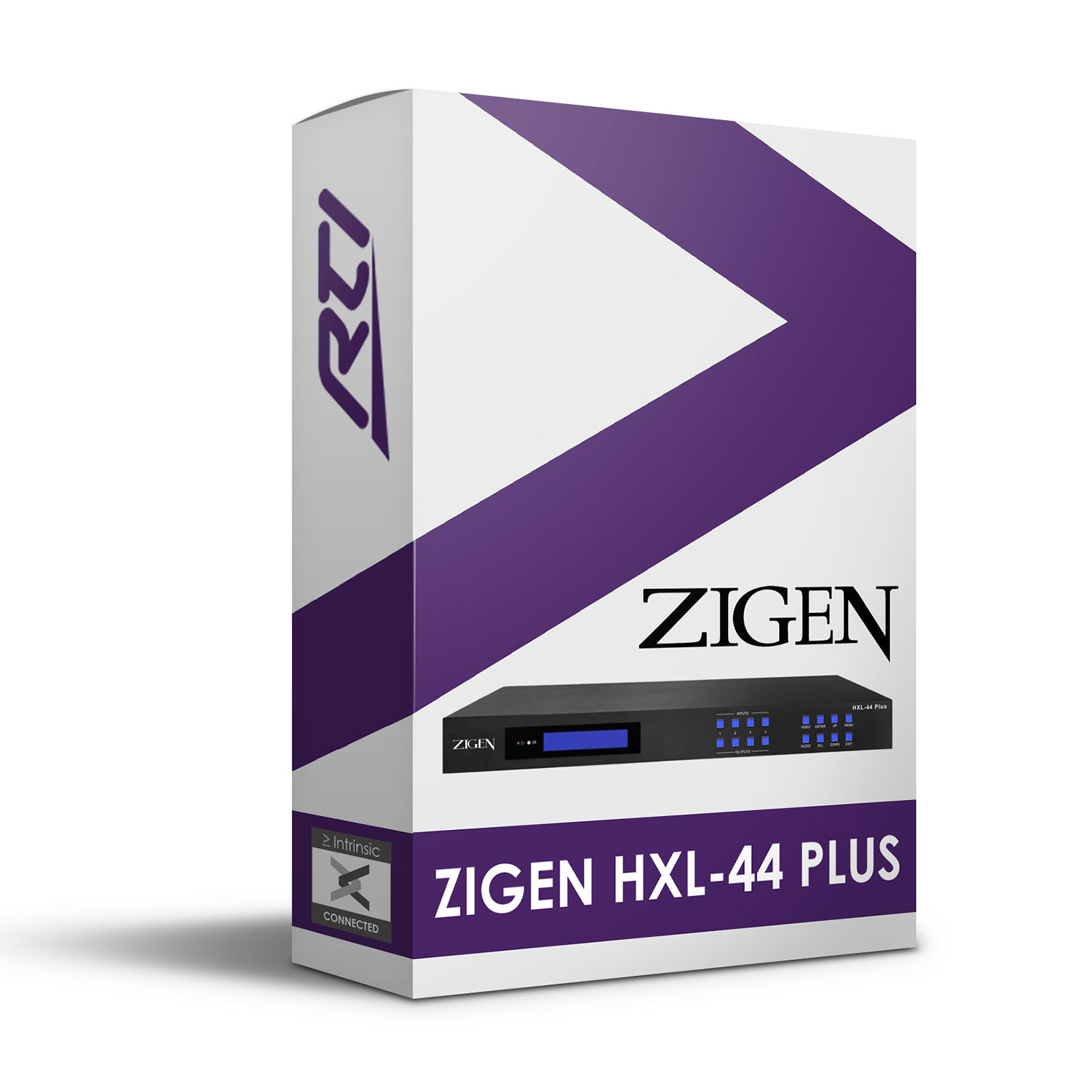
This Zigen HXL-44 Plus Driver for RTI offers control of the Zigen HXL-44Plus from within RTI via IP and RS232.
Features:
- Matrix Source Selection: Any input may be sent to any output.
- Audio Control: Switching, volume and mute control is available for the audio outputs.
- Intrinsic Platinum Integration – Official Zigen commissioned driver
- Driver uses Intrinsic(Athena) cloud technology for key free licensing, update alerts and enhanced support
- Zigen HXL-88 Plus Driver for RTI also available
Tech Support is handled by Intrinsic Dev.
Intrinsic Dev, The Maltings, Allendale, NE47 9EE, UNITED KINGDOM
Email: info@intrinsicdev.com
Zigen HXL-44Plus and HXL-88Plus
> Supported features
Both control methods support input selection. Due to differences in the features offered by each control protocol not all advanced functions are available for all control methods, see Supported Functions below for details. IP (ethernet) is the recommended control method
> Driver license
This driver requires a license key to function. Pricing and license keys can be obtained by visiting www.intrinsicdev.com. License keys are issued on a per controller basis. You only need a single license key for multiple installations on the same controller.
> Device setup
Install, set up and configure the switch according to the manufacturer’s instructions.
Take note of the serial number which is printed on a label on the base of the device, this is required to be entered into Integration Designer Apex. Alternatively, the serial number can be found on the device’s configuration web page.
> Configuration Process
1. Download the latest version of the driver from www.intrinsicdev.com
2. Import the driver into your custom Control Drivers directory, you can check the location of this in Integration Designer Apex by clicking Options > Set Directories.
3. Import an instance of the driver into your project.
4. Select the Driver in the Drivers section of the workspace tree, then click Driver Properties. Select the required Control Connection Type.
a. If using Network (TCP/IP), enter the IP Address of the switch.
b. If using Serial, select the Serial Port the switch is connected to.
5. Enter the last four digits of the device’s serial number into the ID field.
6. Select the number of sources in use in the system.
7. Select the number of video zones (HDMI outputs).
8. Select the number of audio zones (RCA outputs).
9. Enter the names of each source and zone for easy referencing in Apex.
> Supported Functions
The driver supports the following functions, note that some functions are only available to RS232 (serial) control, others only to IP:
Video Switch \
Source Select RS232 & IP Switch the HDMI output to the specified output
Query Matrix Routing IP Query the current video routing status
Query Zone Video Details IP Retrieves details of the specified output
Query Source Video Details IP Retrieves details of the specified input
Audio Switch \
Source Select RS232 & IP Route audio to the analogue outputs from the specified input
Mute On IP Mute the specified analogue audio output
Mute Off IP Unmute the specified analogue audio output
Set Volume IP Set the volume of the analogue audio output, 0 to 100
Recall Tune Preset IP Recall a tune preset by supplying the name of the preset
Query Settings IP Us to query the current audio settings (includes volume and mute status)
Query \
Get Device Info RS232 & IP Retrieves Device Info
All of our software is available to download free of charge but will require licensing to function. Unless specifically noted only one license is required per controller/processor.
One time license required.