Driver Type
Categories
- Recent Updates
- Access Control
- Amplifier
- A/V Receiver
- Climate and Pool Control
- Disc Player / Changer
- Display
- DSP
- DVR
- Irrigation / Sprinklers
- Lighting Control
- Matrix Switch
- Media Server and Player
- Multi-Room A/V
- Networking
- Power and Rack Management
- Security
- Surveillance
- Teleconferencing
- Training
- Tuner
- Utility
- Video Projector
Driver Type
Categories
- Recent Updates
- Access Control
- Amplifier
- A/V Receiver
- Climate and Pool Control
- Disc Player / Changer
- Display
- DSP
- DVR
- Irrigation / Sprinklers
- Lighting Control
- Matrix Switch
- Media Server and Player
- Multi-Room A/V
- Networking
- Power and Rack Management
- Security
- Surveillance
- Teleconferencing
- Training
- Tuner
- Utility
- Video Projector
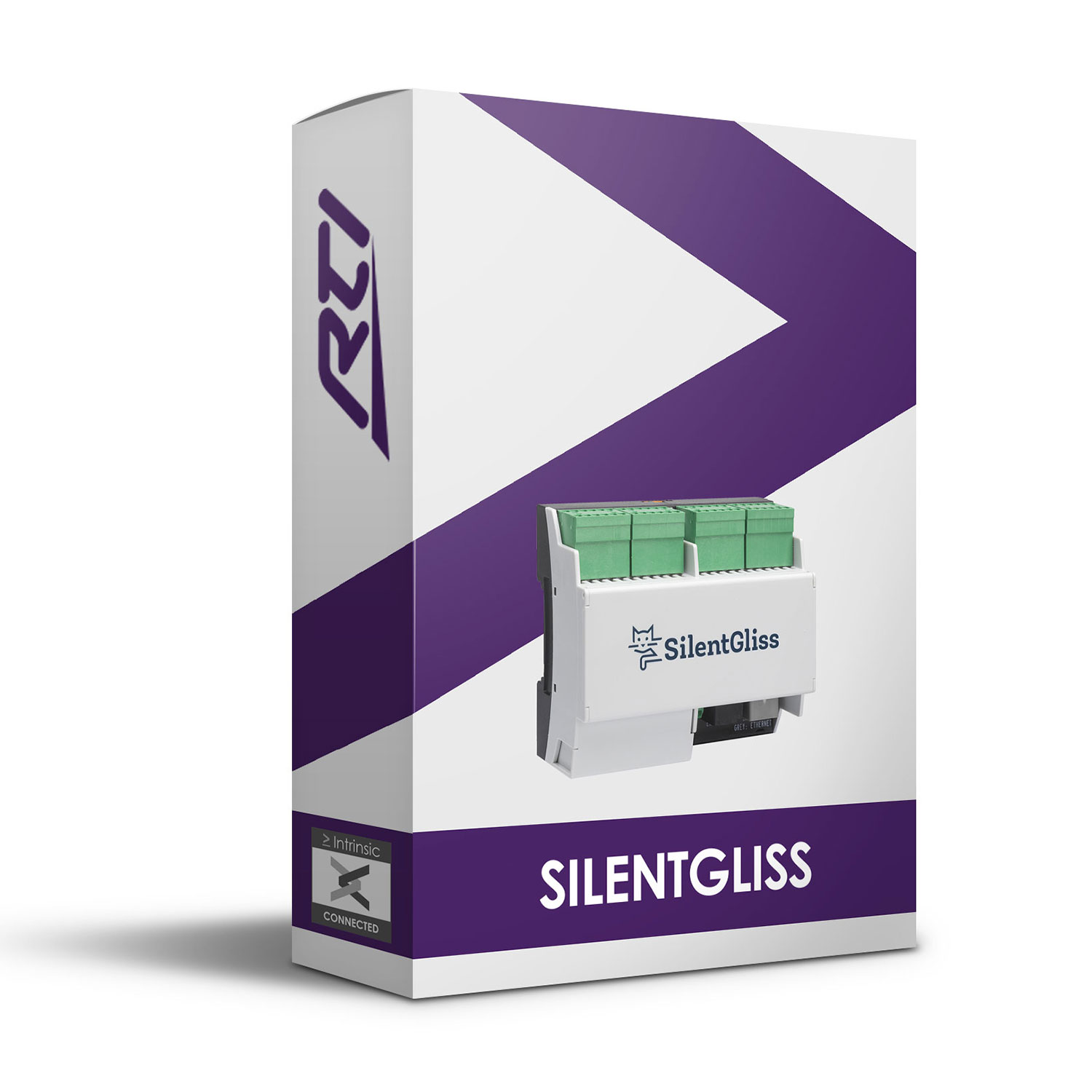
This Silent Gliss Driver offers two-way control of Silent Gliss shades through their IP Gateway and its associated cloud service. Up to 50 shades and 50 groups are supported.
Features:
- Raise, Lower, Go to Level
- Please note – Communication with the device is via IP
- Intrinsic Platinum Integration – Official Silent Gliss driver
- Driver uses Intrinsic(Athena) technology for key free licensing, update alerts and enhanced support
Tech Support is handled by Intrinsic Dev.
Intrinsic Dev, The Maltings, Allendale, NE47 9EE, UNITED KINGDOM
Email: info@intrinsicdev.com
Silent Gliss IP Driver
Overview
This driver offers two-way control of Silent Gliss shades through their IP interface and its associated cloud service. Up to 50 shades and 50 groups are supported.
Supported features
Raise, Lower, Go to Level
PLEASE NOTE:
Communication with the device is via IP.
Any feature not specifically noted as supported should be assumed to be unsupported.
Change Log
v2.00 Initial release
Continued dealer support
Intrinsic Dev offer free license keys for showrooms and dealer’s own homes. To obtain your free license keys simply drop us a support ticket. All of our drivers/modules are fully supported by our online ticketing system.
Disclaimer
Intrinsic Dev’s drivers are created to the highest standard, developed with industry leading practices.
By installing this driver, you agree to our full Terms and Conditions, a copy of which can be found at the end of this document.
Driver license
This driver requires a license to function. Pricing and license keys can be obtained by visiting www.intrinsicdev.com. License keys are issued on a per controller basis and are tied to the MAC address of that controller, you will need quote that MAC address when placing your order. Only a single license key is required for multiple instances of the driver on the same controller.
Device setup
Add and setup devices as described in the Silent Gliss manual.
The system should be fully functional and tested before pairing to RTI.
Apex Configuration process
1. Download the latest version of the driver from www.intrinsicdev.com
2. Place the .rtidriver file in your designated custom driver directory. This can be identified in Apex by clicking Options > Set Directories.
3. Import instances of the driver into your project as required.
4. Enter the IP address for the Silent Gliss gateway.
5. Ensure the XP Diagnostics driver is installed on your processor.
6. Send the configuration to the processor.
7. Open a web browser and go to the IP address of your processor.
8. Click log.
9. On the log page, at the bottom, look for a dropdown setting labelled “Driver – Silent Gliss” and set it to high.
10. Wait a few seconds and the driver will start to trace the devices discovered from the cloud.
11. Copy and paste the ID for RTI into the driver under properties. ie “1”
11. Do the same for any groups you wish to control. Names are for your reference.
Additional Notes
1. Only compatible with Silent Gliss IP interface.
Supported Functions
Individual Shade Control \
Set PositionSet a shade to a specified position, percent open
OpenSet the shade fully open
CloseSet the shade fully closed
Group Control \
Set PositionSet all shades in a group to a specified position, percent open
OpenSet the group fully open
CloseSet the group fully closed
Query \
GetStatusRequest the status of devices
Note that by default the GetStatus command is periodically sent according to the Status Query Interval (ms) property. Each time the command is sent the poll timer is reset meaning the polling interval is maintained.
Supported Variables
Querying the status will update properties of all shades.
Shade 1-50 \
Variable NameTypeDescription
IDStringMotor ID
PositionIntegerPercentage of open
StatusStringIdentifies if a motor is online communicating to the hub
Supported Events
Since every variable is updated at the same time there’s no need to schedule queries from events and a change event for one variable can be considered to indicate an update to all variables.
Given that all states must be queried, events can therefore happen no more frequently than the polling interval. For example, should a user adjust a shade using the app, the change won’t be detected by the RTI system until it next queries the status which, by default, could be up to 10 seconds later.
Shade[1-50] Events \
Status ChangedFired when status (on/offline) of a motor is updated and has changed
Position ChangedFired when the position of a motor is updated
All of our software is available to download free of charge but will require licensing to function. Unless specifically noted only one license is required per controller/processor.
One time license required.