Driver Type
Categories
- Recent Updates
- Access Control
- Amplifier
- A/V Receiver
- Climate and Pool Control
- Disc Player / Changer
- Display
- DSP
- DVR
- Irrigation / Sprinklers
- Lighting Control
- Matrix Switch
- Media Server and Player
- Multi-Room A/V
- Networking
- Power and Rack Management
- Security
- Surveillance
- Teleconferencing
- Training
- Tuner
- Utility
- Video Projector
Driver Type
Categories
- Recent Updates
- Access Control
- Amplifier
- A/V Receiver
- Climate and Pool Control
- Disc Player / Changer
- Display
- DSP
- DVR
- Irrigation / Sprinklers
- Lighting Control
- Matrix Switch
- Media Server and Player
- Multi-Room A/V
- Networking
- Power and Rack Management
- Security
- Surveillance
- Teleconferencing
- Training
- Tuner
- Utility
- Video Projector
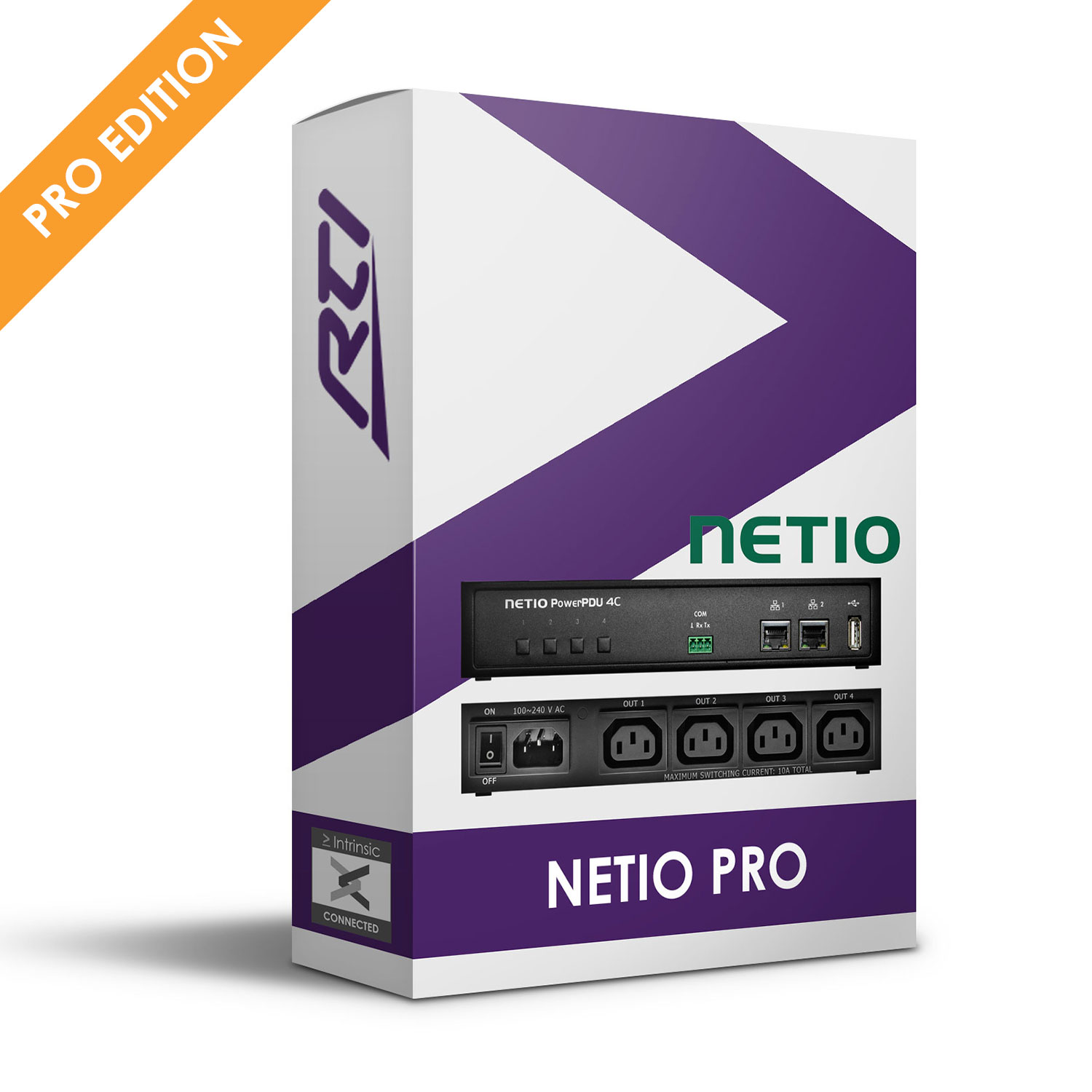
Our Netio Pro Driver for RTI allows an RTI system to control NETIO PDUs, power strips and power cords (that support the REST (JSON) API) with enhanced features, including energy monitoring.
Features:
- Switching with switch status of each outlet
-
Energy data collection
-
On change events
- Driver uses Intrinsic(Athena) technology for key free licensing, update alerts and enhanced support
- Intrinsic Platinum Integration – Official Netio driver
Tech Support is handled by Intrinsic Dev.
Intrinsic Dev, The Maltings, Allendale, NE47 9EE, UNITED KINGDOM
Email: info@intrinsicdev.com
Netio REST (JSON) API
Supported features
BASIC: Switching and switch status of each outlet.
PRO: Switching of each outlet, energy data collection and on change events
Device setup
Install, set up and configure the hardware according to the manufacturer’s instructions. Netio recommend the username and password is changed:
1. Log into the configuration web page of the device
2. Navigate to M2M API Protocols
3. Click JSON API
4. Ensure Enable READ_WRITE is ticked and update the credentials:
It is also recommended to either set a static IP address in the device or assign it a reservation in the site’s DHCP server so that the IP doesn’t change.
Apex Configuration Process
1. Download the latest version of the driver from www.intrinsicdev.com.
2. Place the .rtidriver file in your designated custom driver directory. This can be identified in Apex by clicking Options > Set Directories.
3. Import instances of the driver into your project as required.
4. In the Driver Properties window input the IP address, username and password for the device. The polling interval, the frequency with which the status of the device is requested, can be changed by modifying the Status Query Interval (ms) property. The default is 10000ms (every 10 seconds).
Supported Functions
Control \
[Outlet 1 name] (Outlet 1)Options are Switch On, Switch Off , Short On and Short Off.
Short On and Off will temporarily switch the outlet on or off for the “delay” duration configured in the device’s web interface
[Outlet 2 name] (Outlet 2)
[Outlet 3 name] (Outlet 3)
[Outlet 4 name] (Outlet 4)
Note that by default the GetStatus command is periodically sent according to the Status Query Interval (ms) property. Each time the command is sent the poll timer is reset meaning the polling interval is maintained
Query \
GetStatusRequest the status of all outlets and the PDU global info.
Supported Variables
Querying the status of the device will update information for all outlets, the global and hardware variables. Hardware variables pertain to the device itself, Global to the properties of the input feed and global consumption.
Hardware \
Variable NameTypeUnitsBASICPRODescription
ModelString✓✓Model identification
Device NameString✓✓User defined device name
Firmware VersionString✓✓Version of firmware on the device
MACAddressString✓✓MAC Address of the device
Number of InputsInteger✓✓The number of inputs the device has
Number of OutletsInteger✓✓The number of outlets the device has
ProtocolVersionString✓✓Version of the JSON protocol in use
SerialNumberString✓✓Serial number of the device
Status TimeString✓✓Date and time the status was retrieved
UptimeIntegers✓✓Device uptime
Global \
Variable NameTypeUnitsBASICPRODescription
Energy Counters ResetStringDate/time✓Date and time of the last reset of all energy counters
FrequencyIntegerHz✓Instantaneous Frequency
PhaseString°✓Instantaneous Phase, weighted average from all meters
Total EnergyIntegerWh✓Instantaneous value of the Total Energy counter
Total LoadIntegerW✓Total power of all power outputs
Overall Power FactorInteger✓Instantaneous True Power Factor weighted average from all meters
VoltageIntegerVInstantaneous Voltage
Each outlet has it’s own collection of variables, there are differences between the two editions:
Outlet[1-4] \
Variable NameTypeUnitsBASICPRODescription
IDInteger✓✓Identification number
NameString✓✓User defined name
StateInteger✓✓1 when the outlet is active, 0 when inactive
Is OnBoolean✓✓True when the outlet is active
Is OffBoolean✓✓True when the outlet is inactive
Short On/Off TimeIntegerms✓✓User defined duration for Short On and Short Off functions
CurrentIntegermA✓Instantaneous Current
PhaseInteger°✓Instantaneous Phase
Power FactorInteger✓Instantaneous Power Factor
EnergyIntegerWh✓Instantaneous value of the energy counter
Reverse EnergyIntegerWh✓Instantaneous value of the reverse energy counter
LoadIntegerW✓Total power of the outlet
Supported Events
Since every variable is updated at the same time there’s no need to schedule queries from events (this would effectively cause a feedback loop, don’t do it!) and a change event for one variable can be considered to indicate an update to all variables.
Given that all states must be queried events can therefore happen no more frequently than the polling interval. For example, should a user switch the outlet on using Netio’s own app, the change won’t be detected by the RTI system until it next queries the status which (by default) could be up to 10 seconds later.
The following events are supported in the PRO edition only.
Outlet[1-4] Events \
Status ChangedFired when the on/off state of the outlet changes
Current ChangedFired when the value of the current drawn on the outlet changes
Global Events \
Voltage ChangedFired when the voltage of the input changes
Total Load ChangedFired when the total load (of all outlets) changes
Total EnergyFired when the total energy used by all outlets changes
Overall Power Factor ChangedFired when the aggregated power factor of all outlets changes
Frequency ChangesFired when the frequency of the input voltage changes
All of our software is available to download free of charge but will require licensing to function. Unless specifically noted only one license is required per controller/processor.
One time license required.