Driver Type
Categories
- Recent Updates
- Access Control
- Amplifier
- A/V Receiver
- Climate and Pool Control
- Disc Player / Changer
- Display
- DSP
- DVR
- Irrigation / Sprinklers
- Lighting Control
- Matrix Switch
- Media Server and Player
- Multi-Room A/V
- Networking
- Power and Rack Management
- Security
- Surveillance
- Teleconferencing
- Training
- Tuner
- Utility
- Video Projector
Driver Type
Categories
- Recent Updates
- Access Control
- Amplifier
- A/V Receiver
- Climate and Pool Control
- Disc Player / Changer
- Display
- DSP
- DVR
- Irrigation / Sprinklers
- Lighting Control
- Matrix Switch
- Media Server and Player
- Multi-Room A/V
- Networking
- Power and Rack Management
- Security
- Surveillance
- Teleconferencing
- Training
- Tuner
- Utility
- Video Projector
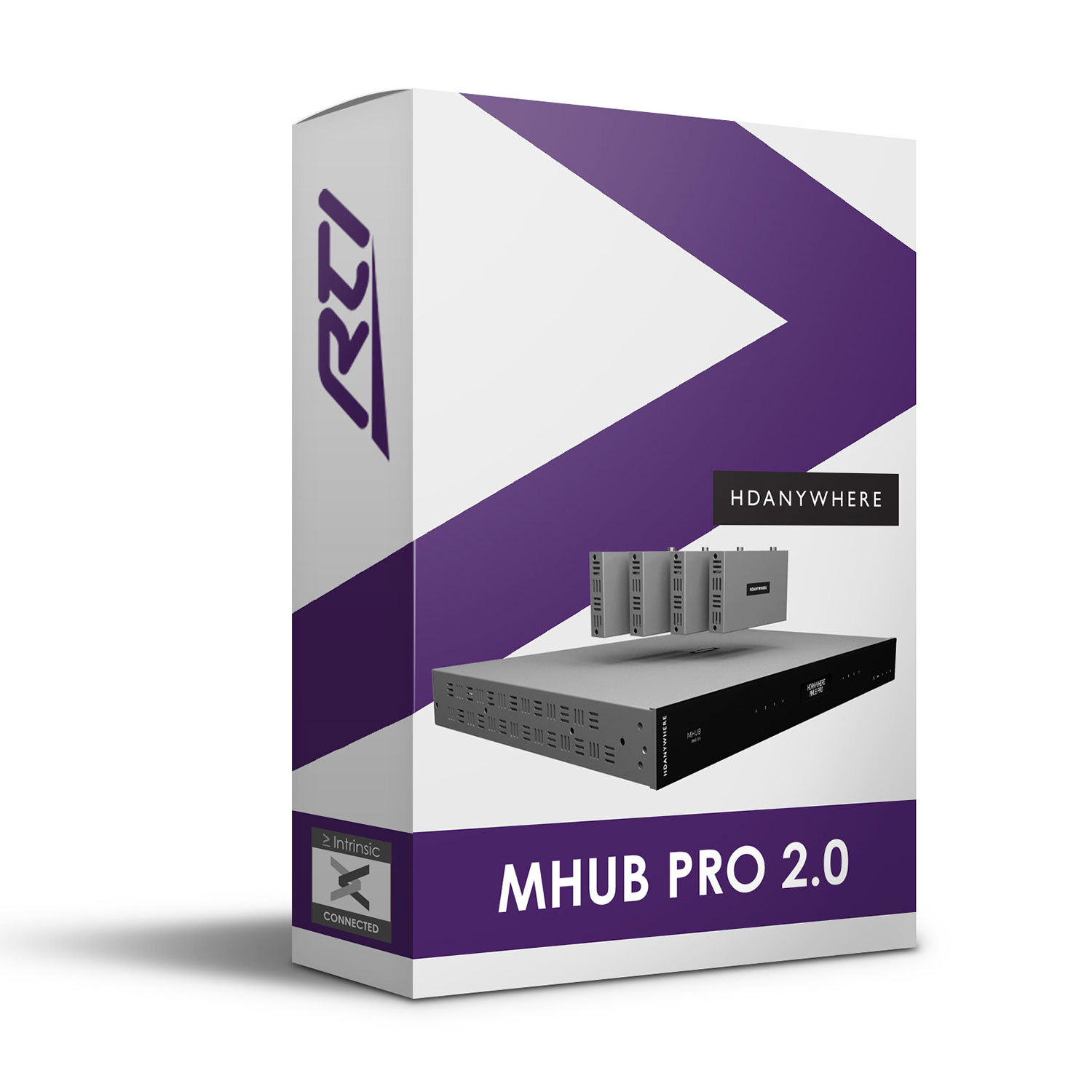
This HDANYWHERE MHUB PRO 2.0 (8×8) Driver for RTI enables a MHUB PRO 2.0 8×8 matrix switcher to communicate with an RTI system. Zone-oriented for easy deployment.
Features:
- Video routing, audio routing and third-party device control via IR, RS232 and CEC functions
- Driver uses Intrinsic(Athena) technology for key free licensing, update alerts and enhanced support
- Intrinsic Platinum Integration – Official HDANYWHERE commissioned driver
Tech Support is handled by Intrinsic Dev.
Intrinsic Dev, The Maltings, Allendale, NE47 9EE, UNITED KINGDOM
Email: info@intrinsicdev.com
HDANYWHERE MHUB Pro 2.0
> Overview
A single driver to support the three listed models of HDANYWHERE matrix switcher. Zone-oriented for easy deployment.
> Supported Features
Video routing, audio routing and third-party device control via IR, RS232 and CEC functions.
> License
This driver requires a license to function. Pricing and licenses can be obtained by visiting www.intrinsicdev.com. Licenses are issued on a per controller basis. You only need a single license for multiple installations on the same controller. The driver requres that the processor has an internet connection for the purposes of license validation.
> Change Log
v1.03 Exposed inter-message delay as a driver property
Improved connection handling to be ready sooner after processor start up
Updated Audio Source variable to also contain current video source when set to "Default"
Added connection status variables
Added Label variables to zones
v1.02 Added HDMI 1/2/3 options to uControl CEC commands
Updated CEC Passthrough commands to accept Logical Address as a string
v1.01 HDANYWHERE branding correction,
v1.00 Initial release
> Device Setup
Install, set up and configure the switch according to the manufacturer’s instructions, this should include naming zones and sources within the hardware’s web configuration UI or the uControl app.
Note that IP control is the only supported control method for this driver, it’s recommended to either configure the device with a static IP address or configure a reservation for the device withing the network’s DHCP server. Either way, ensure that the IP address of the hardware can’t be reassigned after commissioning.
> Integration Designer Apex Programming Process
1. Download the latest version of the driver from www.intrinsicdev.com
2. Import the driver into your custom Control Drivers directory, you can check the location of this in Integration Designer Apex by clicking Options > Set Directories.
3. Import zones into your project’s rooms as required. When adding multiple zones be sure that zones are added to the existing driver and not multiple instances of the whole driver. At this stage it’s important to match the zone numbers with the configuration of the switch, reference the MHUB SETUP page of the switch’s web configuration UI.
4. Configure the driver’s properties to fit the project:
Select the model of hardware on the project
Enter the IP address
If a different status polling interval is required, change it here, in milliseconds (default is 30,000ms or 30s)
For convenient programming within Apex, name the video and audio sources to match the installation
Configure the zones:
Enable each zone used, only actions for enabled zones will be available for macros.
Enter the zone name given in the MHUB configuration, this is to make referencing the zones when editing macros easier.
Select the correct type for that zone. If the zone has only an HDMI/HDBaseT output, use Video, if it has only an audio output choose Audio, if the zone has both HDMI/HDBaseT and an audio output it should be set to AV.
> Supported Functions
The driver supports the following functions, note that zone functions will only be available if that zone has been enabled in the Driver and available functions are dependent upon the zone’s type.
(Zx) Zone Name \
Switch Video Video & AV Zones only Change video routing
Switch Audio Audio & AV zones only Change audio routing
Switch Display Audio Video & AV zones only Change embedded audio routing
Set Zone Volume All zones Set volume
Set Zone Mute All zones Set mute, specify on or off
Set Zone Mute On All zones Mute the audio in the zone
Set Zone Mute Off All zones Unmute the audio in the zone
Query \
Get Power State Queries power status
Get System Info Queries system info, sent periodically as part of status poll
Get Zone Info Queries zone info, sent periodically as part of status poll
Get System Status Queries system status, sent periodically as part of status poll
Device control functions are for controlling connected third-party devices
Device Control \
Execute uControl IR Command Executes a built-in IR function. Specify the command to send and the port to send it from
IR Passthrough Passthrough generic IR code. IR hex data must be in pronto format with each quartet being either space or comma separated. Also specify the port to send from
Output X uControl CEC Command Executes a built-in CEC command. Specify the output type (HDMI/HDBaseT) and the command to send
Output X HDMI CEC Passthrough Passthrough custom CEC command to the HDMI output. Supply the logical address, command and arguments
Output X HDBaseT CEC Passthrough As above but for the HDBaseT output
Configure RS232 Port Set RS232 parameters (baud rate, no, data bits, parity) for the specified port
RS232 Passthrough Set the Type to ASCII or Hex, specify the data to send and the port to send from
Hardware Control \
Reboot Perform a power cycle of the device
Reboot MHUB-OS Perform a soft reboot by restarting the OS
Standby On Set the device into standby mode
Standby Off Wake from standby
Identify Request the device beep
> Supported variable
The following variables are available
Inputs \
Video Input (1-8) Alias String Name for the input as configured in the switch
Audio Input [1-4] Alias String Name for the input as configured in the switch
The availability of zone variables is dependent on the zone’s type:
Video variables are only available to Video or AV type zones.
Display Audio variables are only available to Video or AV type zones.
Audio variables (Volume, Mute etc.) are only available to Audio or AV type zones.
Zone variables also have “on change” events associated with them.
(Zx) Zone Name\
Label String Name assigned to the zone
Video Source Name String Name (alias) if the source currently routed to the zone
Video Source ID Integer ID number of the source currently routed to the zone
Video Output Volume Integer Volume of audio on the video output of the zone
Video Output Mute Boolean Mute status of the audio on the video of the zone
Video Output Muted Boolean True when the audio on the video output is muted
Video Output Unmuted Boolean True when the audio on the video output is not muted
Video Output ARC Boolean Audio Return Channel status of the video output
Video Output ARC On Boolean True when ARC is enabled for the output
Video Output ARC Off Boolean True when ARC is disabled for the output
Display Audio Source Name String Name (alias) of the display (embedded) audio source routed to the zone
Display Audio Source ID Integer ID number of the source currently routed to the display (embedded) audio of the zone
Audio Source Name String Name (alias) of the source currently routed to the audio output(s) of the zone
Audio Source ID Integer ID number of the source currently routed to the audio outputs of the zone
Volume Integer Volume level of the audio outputs belonging to the zone
Mute Boolean Mute status of the zone
Is Muted Boolean True when the zone’s audio is muted
Is Unmuted Boolean True when the zone’s audio is not muted
Variables belonging to the MHUB category relate to the matrix switch hardware.
MHUB \
Name String Name assigned to the hardware
Official Name String Name defined by the manufacturer
Serial Number String Serial number of the switch
Unit ID String ID of this unit
Firmware String Firmware version of the switch
OS Firmware String OS Firmware
OS Version String MHUB-OS Version
API Version String Integration API version
First Boot Boolean Indicates first boot
Connection State Integer 0 = disconnected, 1 = connected
Connected Boolean True then connected
Disconnected Boolean True when not connected
This driver is completely FREE but you need an Intrinsic Dev account to download this driver, it takes 2 minutes and you can download the driver immediately. Create an account now or login and then add to the driver to your basket and complete the transaction to get your license key.