Driver Type
Categories
- Recent Updates
- Access Control
- Amplifier
- A/V Receiver
- Climate and Pool Control
- Disc Player / Changer
- Display
- DSP
- DVR
- Irrigation / Sprinklers
- Lighting Control
- Matrix Switch
- Media Server and Player
- Multi-Room A/V
- Networking
- Power and Rack Management
- Security
- Surveillance
- Teleconferencing
- Training
- Tuner
- Utility
- Video Projector
Driver Type
Categories
- Recent Updates
- Access Control
- Amplifier
- A/V Receiver
- Climate and Pool Control
- Disc Player / Changer
- Display
- DSP
- DVR
- Irrigation / Sprinklers
- Lighting Control
- Matrix Switch
- Media Server and Player
- Multi-Room A/V
- Networking
- Power and Rack Management
- Security
- Surveillance
- Teleconferencing
- Training
- Tuner
- Utility
- Video Projector
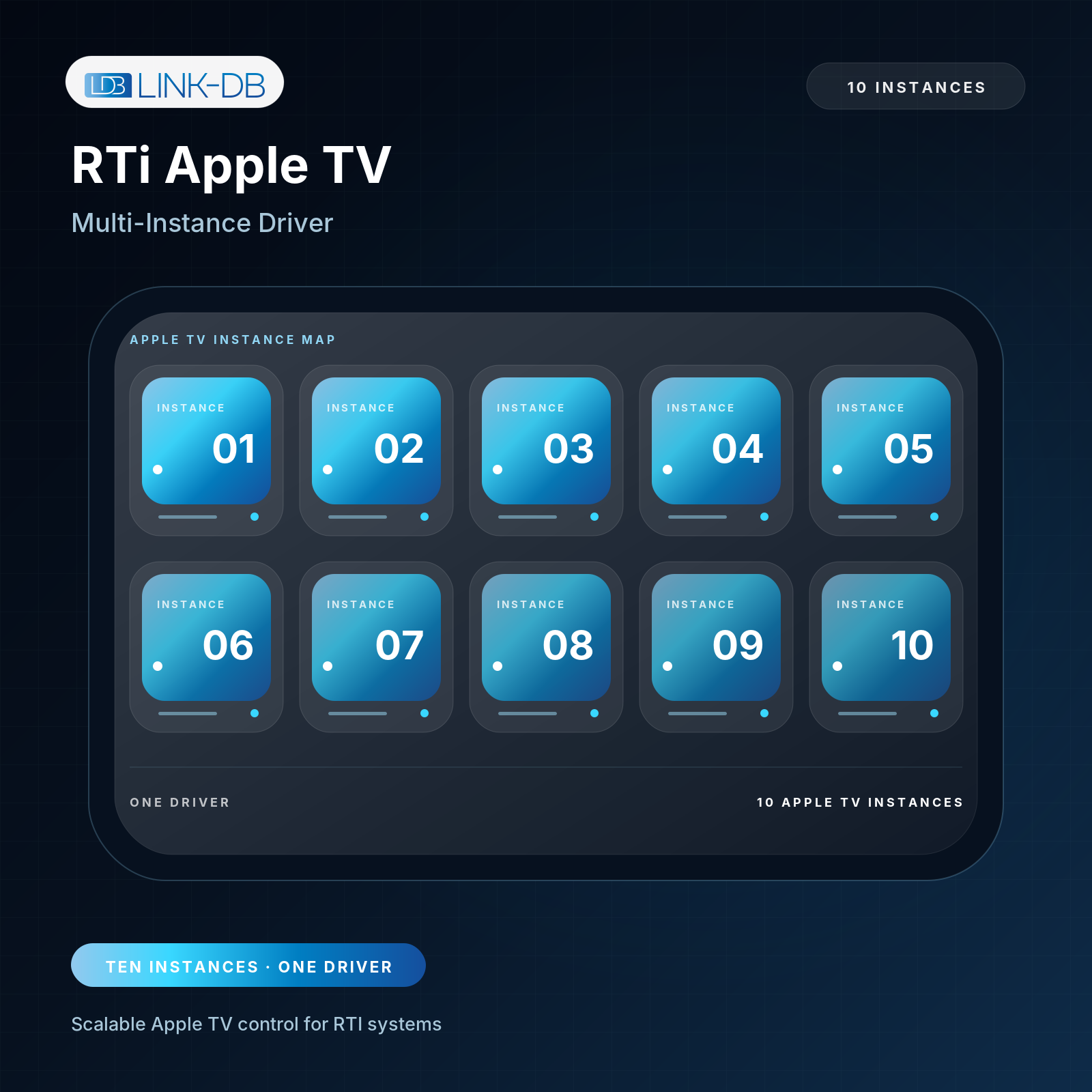
Apple TV Multi-Instance Network Driver
By: Pascal Wuthrich
Updated: June 20, 2026
Version: 1.0
Apple TV Multi-Instance Network Driver - End User Guide
This driver controls up to 10 Apple TVs over the local network using Apple TV Companion remote control. It supports PIN pairing, local credential storage, navigation, transport keys, wake/sleep, app launching, list control, and optional app icons.
Important Notes
- The RTI processor sends remote-control commands directly to the Apple TV on the local network.
- A helper service is used only for the required Apple pairing and session cryptography. It does not store credentials and it does not relay button commands.
- Pairing credentials are stored locally on the RTI processor using RTI Persistence. After a processor restart, the driver uses the stored credentials and automatically starts the Apple TV Companion session again.
- Keep the Apple TV and the RTI processor on the same LAN/VLAN. Firewalls must allow local TCP communication between them.
Basic Setup
1. Import the driver into Integration Designer.
2. Add one Apple TV source for each Apple TV you want to control.
3. This is a multi-instance driver and supports up to 10 Apple TVs in one driver instance.
4. Integration Designer automatically updates the Apple TV count based on the number of Apple TV sources in the project. The count is not a normal user setting.
5. For each Apple TV source, enter IP Address or Hostname. A reserved DHCP address is recommended.
6. Optionally enter a Device Name for easier identification.
7. Read the Processor MAC from the driver's License system variables, generate a license for that MAC, and enter only the License Key in the driver settings. Without a valid license, the driver runs in 120-minute trial mode after each driver start.
8. Leave Debug Logging disabled for normal use. Enable it only while troubleshooting.
9. Load the project to the RTI processor.
Pairing
1. Make sure the Apple TV is powered on and visible on the TV screen.
2. Run System > Start Pairing for the correct Apple TV source.
3. A four-digit PIN appears on the Apple TV screen.
4. Enter the PIN on the RTI remote or panel using Pairing Code Entry > Digit 0-9.
5. Use Backspace or Clear if the code was entered incorrectly.
6. Run System > Send Pairing Code.
7. Pairing Status should change to paired.
8. Local Control Status should change to companion_credentials_stored and then companion_ready.
9. Pairing is normally required only once. Use Reset Pairing Data only when replacing the Apple TV, changing credentials, or troubleshooting authentication.
Daily Use
- Use Navigation commands for Up, Down, Left, Right, Select, Back/Menu, Home, and Long Home.
- Use Transport commands for Play, Pause, Play/Pause Toggle, Next, Previous, Fast Forward, Rewind, Skip Forward, and Skip Backward.
- Use System commands for Wake, Sleep, Reconnect, Refresh Status, Pairing, and Reset Pairing Data.
- If the Apple TV is asleep, the first command may wake or reconnect it. If control does not return, use Reconnect.
App List and App Launching
- The driver provides Installed Packages List for RTI list views.
- Use Apps > Refresh App List to read the installed apps from the Apple TV.
- Use Apps > Start Selected Item with the RTI list selection to launch the selected app.
- Use Hide Apps In List to hide apps by bundle ID, separated by commas. Example: com.apple.Fitness,com.apple.TVMusic
- Use Custom Apps In List to add known apps manually if required. Format one app per line as: App Name|bundle.id
- Watchdog AppList can refresh the app list every five minutes. Leave it disabled for best processor performance unless automatic app updates are needed.
Optional App Icons
- Show Icons is optional. Enable it only if app icons are required on RTI panels.
- Icons use helper-hosted HTTPS URLs. The driver does not store image files on the XP processor.
- For best performance on smaller processors, keep Show Icons disabled and use text-only app lists.
- For a Dynamic Image, use the image variables Selected App Icon or Current App Icon, not the URL string variables.
Soft Keyboard
- Use Keyboard Active to show or hide keyboard pages.
- Use Keyboard Text Buffer as the editable text buffer.
- Send Keyboard Text sends the complete text string in one Companion command when an Apple TV text field is focused.
Status Variables
- Connection Status: disconnected, connecting, connected, or error.
- Pairing Status: not_paired, pairing_requested, code_required, paired, or failed.
- Local Control Status: companion_ready means commands can be sent.
- Last Error shows the most recent actionable problem.
- Protocol Trace gives detailed setup and diagnostic information when Debug Logging is enabled.
What To Do If There Is An Error
Apple TV not reachable
Check the IP address, network/VLAN routing, and that the Apple TV is powered or wakeable. Reserve the Apple TV IP address in DHCP and try System > Reconnect.
No PIN appears on the Apple TV
Confirm that Start Pairing was run for the correct Apple TV source. Wake the Apple TV, check the IP address, and try again. If another Apple TV shows the PIN, verify the IP address assigned to that source.
Pairing code is rejected
The PIN is one-time only and expires quickly. Clear the entered code, start pairing again, enter the new four digits, then run Send Pairing Code.
Pairing Status is paired but Local Control Status is not companion_ready
Run System > Reconnect. The driver must perform a Companion session verification after pairing and after processor restarts. Internet access to the helper service is required for the cryptographic session setup, but commands are local after companion_ready.
Credentials are missing after reboot
Check Last Error. If Persistence save failed or credentials are missing, pair again and verify that Reset Pairing On Start is disabled for that Apple TV.
Commands are slow or delayed
Disable Debug Logging, disable Show Icons if not needed, and leave Watchdog AppList disabled unless automatic app refresh is required. Confirm that Local Control Status is companion_ready before testing button speed.
App list is empty
Use Refresh App List after Local Control Status is companion_ready. If the Apple TV is asleep, wake it first. If needed, add important apps in Custom Apps In List.
Icons do not appear
Enable Show Icons, confirm the panel has network access to HTTPS icon URLs, and use the image variables rather than URL string variables. For performance-sensitive installations, use text-only lists.
Authentication invalid or Apple TV replaced
Run Reset Pairing Data for the affected Apple TV, then perform pairing again.
Recommended Final Checklist
1. Apple TV IP address is reserved and entered correctly.
2. Pairing Status is paired.
3. Local Control Status is companion_ready.
4. Basic navigation commands work.
5. App list and optional icons are configured according to project needs.
6. Debug Logging is disabled before handing over the system.
Apple TV Multi-Instance Network Driver - End User Guide
This driver controls up to 10 Apple TVs over the local network using Apple TV Companion remote control. It supports PIN pairing, local credential storage, navigation, transport keys, wake/sleep, app launching, list control, and optional app icons.
Important Notes
- The RTI processor sends remote-control commands directly to the Apple TV on the local network.
- A helper service is used only for the required Apple pairing and session cryptography. It does not store credentials and it does not relay button commands.
- Pairing credentials are stored locally on the RTI processor using RTI Persistence. After a processor restart, the driver uses the stored credentials and automatically starts the Apple TV Companion session again.
- Keep the Apple TV and the RTI processor on the same LAN/VLAN. Firewalls must allow local TCP communication between them.
Basic Setup
1. Import the driver into Integration Designer.
2. Add one Apple TV source for each Apple TV you want to control.
3. This is a multi-instance driver and supports up to 10 Apple TVs in one driver instance.
4. Integration Designer automatically updates the Apple TV count based on the number of Apple TV sources in the project. The count is not a normal user setting.
5. For each Apple TV source, enter IP Address or Hostname. A reserved DHCP address is recommended.
6. Optionally enter a Device Name for easier identification.
7. Read the Processor MAC from the driver's License system variables, generate a license for that MAC, and enter only the License Key in the driver settings. Without a valid license, the driver runs in 120-minute trial mode after each driver start.
8. Leave Debug Logging disabled for normal use. Enable it only while troubleshooting.
9. Load the project to the RTI processor.
Pairing
1. Make sure the Apple TV is powered on and visible on the TV screen.
2. Run System > Start Pairing for the correct Apple TV source.
3. A four-digit PIN appears on the Apple TV screen.
4. Enter the PIN on the RTI remote or panel using Pairing Code Entry > Digit 0-9.
5. Use Backspace or Clear if the code was entered incorrectly.
6. Run System > Send Pairing Code.
7. Pairing Status should change to paired.
8. Local Control Status should change to companion_credentials_stored and then companion_ready.
9. Pairing is normally required only once. Use Reset Pairing Data only when replacing the Apple TV, changing credentials, or troubleshooting authentication.
Daily Use
- Use Navigation commands for Up, Down, Left, Right, Select, Back/Menu, Home, and Long Home.
- Use Transport commands for Play, Pause, Play/Pause Toggle, Next, Previous, Fast Forward, Rewind, Skip Forward, and Skip Backward.
- Use System commands for Wake, Sleep, Reconnect, Refresh Status, Pairing, and Reset Pairing Data.
- If the Apple TV is asleep, the first command may wake or reconnect it. If control does not return, use Reconnect.
App List and App Launching
- The driver provides Installed Packages List for RTI list views.
- Use Apps > Refresh App List to read the installed apps from the Apple TV.
- Use Apps > Start Selected Item with the RTI list selection to launch the selected app.
- Use Hide Apps In List to hide apps by bundle ID, separated by commas. Example: com.apple.Fitness,com.apple.TVMusic
- Use Custom Apps In List to add known apps manually if required. Format one app per line as: App Name|bundle.id
- Watchdog AppList can refresh the app list every five minutes. Leave it disabled for best processor performance unless automatic app updates are needed.
Optional App Icons
- Show Icons is optional. Enable it only if app icons are required on RTI panels.
- Icons use helper-hosted HTTPS URLs. The driver does not store image files on the XP processor.
- For best performance on smaller processors, keep Show Icons disabled and use text-only app lists.
- For a Dynamic Image, use the image variables Selected App Icon or Current App Icon, not the URL string variables.
Soft Keyboard
- Use Keyboard Active to show or hide keyboard pages.
- Use Keyboard Text Buffer as the editable text buffer.
- Send Keyboard Text sends the complete text string in one Companion command when an Apple TV text field is focused.
Status Variables
- Connection Status: disconnected, connecting, connected, or error.
- Pairing Status: not_paired, pairing_requested, code_required, paired, or failed.
- Local Control Status: companion_ready means commands can be sent.
- Last Error shows the most recent actionable problem.
- Protocol Trace gives detailed setup and diagnostic information when Debug Logging is enabled.
What To Do If There Is An Error
Apple TV not reachable
Check the IP address, network/VLAN routing, and that the Apple TV is powered or wakeable. Reserve the Apple TV IP address in DHCP and try System > Reconnect.
No PIN appears on the Apple TV
Confirm that Start Pairing was run for the correct Apple TV source. Wake the Apple TV, check the IP address, and try again. If another Apple TV shows the PIN, verify the IP address assigned to that source.
Pairing code is rejected
The PIN is one-time only and expires quickly. Clear the entered code, start pairing again, enter the new four digits, then run Send Pairing Code.
Pairing Status is paired but Local Control Status is not companion_ready
Run System > Reconnect. The driver must perform a Companion session verification after pairing and after processor restarts. Internet access to the helper service is required for the cryptographic session setup, but commands are local after companion_ready.
Credentials are missing after reboot
Check Last Error. If Persistence save failed or credentials are missing, pair again and verify that Reset Pairing On Start is disabled for that Apple TV.
Commands are slow or delayed
Disable Debug Logging, disable Show Icons if not needed, and leave Watchdog AppList disabled unless automatic app refresh is required. Confirm that Local Control Status is companion_ready before testing button speed.
App list is empty
Use Refresh App List after Local Control Status is companion_ready. If the Apple TV is asleep, wake it first. If needed, add important apps in Custom Apps In List.
Icons do not appear
Enable Show Icons, confirm the panel has network access to HTTPS icon URLs, and use the image variables rather than URL string variables. For performance-sensitive installations, use text-only lists.
Authentication invalid or Apple TV replaced
Run Reset Pairing Data for the affected Apple TV, then perform pairing again.
Recommended Final Checklist
1. Apple TV IP address is reserved and entered correctly.
2. Pairing Status is paired.
3. Local Control Status is companion_ready.
4. Basic navigation commands work.
5. App list and optional icons are configured according to project needs.
6. Debug Logging is disabled before handing over the system.
One-time license: after payment, a perpetual license key is generated for the entered MAC address.
This product requires the processor MAC address. Example: 0015260388FA.
Without a valid license, the driver runs in 120-minute trial mode after each driver start.