Driver Type
Categories
- Recent Updates
- Access Control
- Amplifier
- A/V Receiver
- Climate and Pool Control
- Disc Player / Changer
- Display
- DSP
- DVR
- Irrigation / Sprinklers
- Lighting Control
- Matrix Switch
- Media Server and Player
- Multi-Room A/V
- Networking
- Power and Rack Management
- Security
- Surveillance
- Teleconferencing
- Training
- Tuner
- Utility
- Video Projector
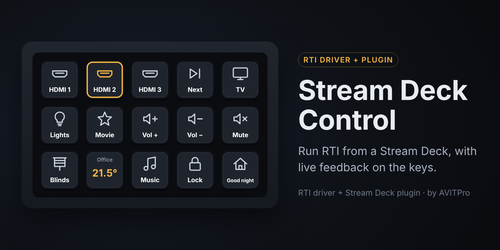
Stream Deck Control
By: AVITPro
Updated: Nov. 11, 2026
Stream Deck Control – RTI driver + Stream Deck plugin
Run your RTI system from an Elgato Stream Deck. Each key sends a command to your RTI XP processor, where it triggers a macro: switch an HDMI input with IR, start a scene, dim the lights or anything else RTI can do. Feedback from RTI comes back to the keys, so the active input lights up and live values like temperature or status appear right on the key.
Two parts that work together
- Network Commands (RTI driver). It listens on a fixed TCP port on the processor, 5150 by default. It takes up to 32 named commands, such as HDMI1 or MOVIE, and each command has its own event for macros. There are also 16 feedback slots you set from macros, and the driver can set feedback automatically for input selection, with no macro steps at all.
- RTI Control (Stream Deck plugin). You set the processor’s IP address once, then choose a command for each key. The driver’s command list is shown as suggestions. Keys can light up when a feedback slot matches, show the feedback value as text, use the built-in Dark blue key graphics with 18 icons, or switch between your own images for the inactive and active states.
Not only for Stream Deck
The driver accepts plain HTTP (http://processor:5150/HDMI1) and line-based TCP commands. A PC, a script, Bitfocus Companion or another control system can trigger RTI macros and read feedback in the same way.
Security
The driver has an optional password and an optional list of allowed IP addresses. It is meant for your local network only, so never expose the port to the internet.
Requirements
- Processor: RTI XP-3, XP-6, XP-6s, XP-8s or XP-8v with firmware 20.8 (2020) or later. Current firmware (25.x and later) is recommended. Integration Designer is needed.
- Stream Deck: Elgato Stream Deck software 6.4 or later, on Windows 10/11 or macOS 12 or later. It works with any Stream Deck model that has keys.
- Network: the computer with the Stream Deck must be able to reach the processor’s IP address.
Tested on XP-3 (firmware 26.8) with Stream Deck MK.2 on Windows.
The Driver is completly free, no license needed
Network Commands driver + RTI Control plugin · by AVITPro
Stream Deck Control
Receives commands over the network and triggers events in the RTI system. Made for the Elgato Stream Deck with the RTI Control plugin, but it works with anything that can open a web address or send a line of text: a PC, a script, Bitfocus Companion or another control system.
Getting started
Add the driver to the processor. The port is 5150 by default.
Enter the names of your commands under Commands, e.g. HDMI1, HDMI2, HDMI3 and NEXT (these four are pre-filled).
Attach a macro to each event Command 1, Command 2 and so on under the driver in Integration Designer, e.g. an IR command to an HDMI switch.
Download to the processor. Status should show Listening on port 5150.
Test from a computer on the same network: open http://processor-ip:5150/HDMI1 in a browser. The reply should start with {"ok":true and the macro for Command 1 runs.
HTTP
GET /HDMI1 or /cmd/HDMI1 runs the command HDMI1.
GET /#3 (written /%233) or /cmd3 runs command 3 regardless of its name.
GET /fb returns all feedback values as JSON.
GET /status returns the command list and the feedback. The Stream Deck plugin uses it to suggest commands.
The reply is JSON. Unknown commands return HTTP 404 and trigger the event Unknown command received.
Text commands (TCP)
Connect to the same port and send one command per line, ended with CR or LF. The reply is OK HDMI1 or ERR UNKNOWN text. FB? lists the feedback, PING replies PONG. The connection may stay open, but is closed after 10 minutes without traffic.
Automatic feedback
Under Automatic feedback a slot is set as soon as a command arrives, without a macro. Default: slot 1, the commands HDMI1,HDMI2,HDMI3, and NEXT steps through them. Set the Stream Deck keys to Feedback 1 and the active input lights up. Set the slot to Off if you prefer to control feedback from macros.
Feedback to Stream Deck
There are 16 feedback slots. Set them from macros with the function Set feedback, e.g. slot 1 = HDMI2 after the IR command for input 2 has been sent. A Stream Deck key can light up when the slot has a given value, or show the text. The values are stored in the processor and survive a restart.
Feedback: next in list steps a slot through a list, e.g. HDMI1,HDMI2,HDMI3. Put it in the macro for NEXT so the feedback follows when the input is changed with Next.
An IR-controlled device sends nothing back. If the input is changed another way, e.g. with the original remote or automatic switching, the feedback is wrong until the next command.
Security
Without a password, anyone on the network can run the commands. Use Password and/or Allowed IP addresses if the network is not trusted. Never open the port to the internet.
Troubleshooting
Could not open port: the port is already used by something else on the processor. Choose another port above 1024.
Nothing happens: check that Status shows Listening, that the computer can reach the processor's IP address and that the command is spelled as in the settings. The variable Last command shows what arrived.
Detailed log: enable hidden settings with TraceViewer and turn on Debug output.
Requires an RTI XP processor with firmware 20.8 (2020) or later. Current firmware (25.x or later) is recommended.