Driver Type
Categories
- Recent Updates
- Access Control
- Amplifier
- A/V Receiver
- Climate and Pool Control
- Disc Player / Changer
- Display
- DSP
- DVR
- Irrigation / Sprinklers
- Lighting Control
- Matrix Switch
- Media Server and Player
- Multi-Room A/V
- Networking
- Power and Rack Management
- Security
- Surveillance
- Teleconferencing
- Training
- Tuner
- Utility
- Video Projector
Driver Type
Categories
- Recent Updates
- Access Control
- Amplifier
- A/V Receiver
- Climate and Pool Control
- Disc Player / Changer
- Display
- DSP
- DVR
- Irrigation / Sprinklers
- Lighting Control
- Matrix Switch
- Media Server and Player
- Multi-Room A/V
- Networking
- Power and Rack Management
- Security
- Surveillance
- Teleconferencing
- Training
- Tuner
- Utility
- Video Projector
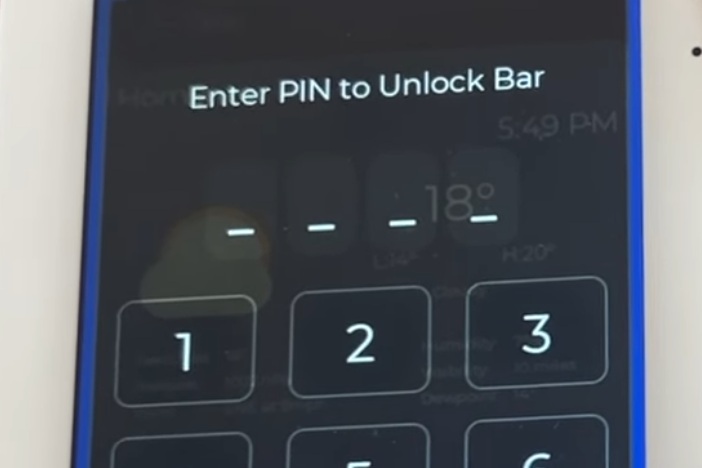
Multi Instance PIN Driver
By: John Marsh
Updated: Dec. 18, 2025
Version: 2.01
This driver is ideal for locking out controllers in public areas such as bars, restaurants, hotels, meeting rooms etc. You can allow the end user to manage Pin numbers without having to go back into Integration Designer. Pin numbers can be updated remotely using a Web browser, Dropbox or Goggle Drive files.
A multi instance Pin number driver for RTI. you can have up to 100 individual Pin numbers. all the functions and variables in the driver are fully tagged for Integration Designer 11. this means once you have a nice user interface, you can simply copy and paste.
The Pin number driver allows you to easily update and manage Pin numbers in one of three different ways. You can update using the build in web server using a password, or you can update from text files linked on Dropbox or Google Drive.
The video on the Website demonstrates the features of the driver and build demo file that is included in the driver bundle.
Driver is completly free to use.
Multi Instance Pin Driver.
Each pin number is added as a device in the Add Workspace Item window. The driver has up to 100 Pin numbers. Each Pin number is a separate instance, and all functions and variables are tagged. Once you have a nice user interface, you can simply copy and paste, and it will auto program. This driver is ideal for adding Pin numbers to controllers like touch panels. Add one instance of the driver for each controller.
The driver gives two methods for updating the Pin numbers. The first method uses a built-in web server. You can give the end user a password to the web server. Here the user can change the Pin numbers if their device is on the same network as the XP processor. The second method uses a cloud service, either Dropbox or Google Drive, to hold a text file containing the Pin numbers. This method requires an internet connection. The Pin numbers can be changed from anywhere by anyone with access to the Dropbox or Google account.
Driver configuration:
Give each pin number a descriptive name to make life easier as you program your system. pins could be for a particular screen or for an individual user.
For Pin numbers updated via the web interface, select how many digits you want the pin number to use, 4, 6 or 8.
PIN Update methods:
Web Interface: Select ‘Web Interface’ from the dropdown box.
Set the password for the web interface. This is used to login to the web page and change pin numbers as required. The password must be at least 8 characters long.
Set the port for the web interface. The default is 1880 and this should only need to be changed if there is a conflict with another driver.
To set or change the pin numbers, you need to browse to the IP address of the XP processor running the driver on the port setup in the configuration. Example http://192.168.1.16:1880
The user will then be asked to enter the password that you set in the driver configuration.
Once the correct password has been entered, the user will see a table of all the Pin numbers.
To change the pin number simply enter the new pin and press the save button.
The save button must be pressed whenever any pin number is changed.
Dropbox file URL: Create a text file with you Pin numbers. The first Pin should be at the start of the first line of the text document. The second Pin on the second and so on. You can add descriptions after the Pin number to help you remember each Pins function. The text description will be ignored by the driver.
Save the file to your Dropbox. Create a link to this folder using the Dropbox ‘Share’ feature. Make sure the link has the setting ‘Anyone with the link’ set. Paste the link generated by Dropbox into the driver configuration and set the update duration.
Google Drive file URL: As with Dropbox, create a text file and save it to you Google Drive. Create a shared link to the file. Make sure the option is selected for ‘Anyone with the link’. Copy and paste the generated link into the driver configuration.
Driver Functions:
Tag: KP_0 to KP_9: Number keypad digit entries.
Tag: Clear: Clears all digits of the current entry.
Tag: KP_Back: Deletes the last digit entered.
Tag: Set Locked Flag: This sets a flag in the driver that can be used to display a layer with the lock screen. This flag is cleared when the correct Pin number is entered.
Driver Variables:
Tag: PIN Hidden: this gives a display of the whole pin number, but the digits will be obfuscated as they are entered. They will be displayed as Asterisks.
Tag: PIN Readable: This is like the variable above but will display the digits entered in a readable format.
Tag: Digit n Hidden: Will display one digit in an obfuscated manner. The number of the digit is n.
Tag: Digit n Readable: Will display one digit in a readable format.
Tag: Connected: A Boolean variable that shows if the Dropbox or Google Drive link is working correctly.
Tag: Layer Flag: A variable that can be used to turn on and off a layer that displays the lock screen. This flag can only be cleared by entering the correct Pin number.
Driver Events:
An event is triggered for each Pin number when the number is entered correctly. There is also an event that is triggered when any valid pin number is entered.
Change Log:
10/11/25 version 2.01
Updated password handling for web updates to allow for special characters in passwords.