Driver Type
Categories
- Recent Updates
- Access Control
- Amplifier
- A/V Receiver
- Climate and Pool Control
- Disc Player / Changer
- Display
- DSP
- DVR
- Irrigation / Sprinklers
- Lighting Control
- Matrix Switch
- Media Server and Player
- Multi-Room A/V
- Networking
- Power and Rack Management
- Security
- Surveillance
- Teleconferencing
- Training
- Tuner
- Utility
- Video Projector
Driver Type
Categories
- Recent Updates
- Access Control
- Amplifier
- A/V Receiver
- Climate and Pool Control
- Disc Player / Changer
- Display
- DSP
- DVR
- Irrigation / Sprinklers
- Lighting Control
- Matrix Switch
- Media Server and Player
- Multi-Room A/V
- Networking
- Power and Rack Management
- Security
- Surveillance
- Teleconferencing
- Training
- Tuner
- Utility
- Video Projector
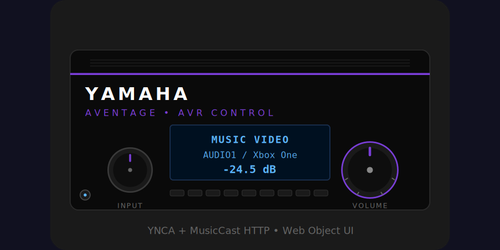
Yamaha AVR Control
By: David Bowdler
Updated: July 8, 2026
Version: 1.18
Yamaha AVR Control
Complete two-way control of Yamaha AV receivers from RTI. Talks the Yamaha YNCA protocol over IP (TCP port 50000) with automatic fallback to the YamahaExtendedControl HTTP API when the single TCP socket is busy — or over RS-232 on AVENTAGE RX-A models. Auto-discovers the receiver's inputs with their friendly names, exposes every zone as its own room source, and ships a built-in browser Web Object UI so a panel gets a polished now-playing/control page with no extra hardware.
Key Features
- Dual transport: YNCA over TCP:50000 with automatic HTTP fallback, or RS-232 (AVENTAGE RX-A). A 30-second keepalive prevents idle drops and the driver auto-recovers TCP when it frees up.
- MusicCast-collision proof: when the MusicCast phone app (or another processor) grabs the single TCP socket, the driver falls back to HTTP automatically, then switches back to TCP for low latency. An HTTP-only mode is available for multi-processor installs.
- Multi-zone, add-to-room: one "Zone" source added up to four times — one instance per room (instance 1 = Main, 2/3/4 = the receiver's extra zones). Drop a Receiver template and the standard Power / Volume / Mute tags autoprogram to that zone.
- Auto-discovered inputs: pulls the receiver's full input list with the customer's own names (rename AV2 to "Xbox One" on the AVR and the driver shows it). 21+ inputs incl. HDMI/AV, AUDIO, Phono, Tuner, Bluetooth, USB, Spotify, Tidal, Deezer, AirPlay.
- Yamaha Scenes 1-12 recall, plus 20+ DSP sound programs (Hall in Vienna, Cellar Club, Music Video, Sports, and more), Pure Direct, Compressed Music Enhancer and Straight mode.
- Tone & tuner: bass/treble control and an FM tuner section with named preset management.
- Built-in Web Object UI: a browser control panel served from the processor with per-zone views and full theme customization (30 accent colours, 22 background themes) — no extra hardware.
- On-screen Browse Menu for hardware remotes (T-class / ISR): inputs, sound programs, zones, tone, scenes, sleep and tuner.
- Real-time two-way feedback on power, volume, mute, input, sound program and per-zone state, plus optional cloud remote logging for support.
Requirements
- RTI XP processor (XP-8 or compatible), Integration Designer 11.4+ / runtime 24+.
- A networked Yamaha AVR (AVENTAGE RX-A or RX-V, ~2010 onwards) with Network Standby enabled — or an AVENTAGE RX-A with its DB-9 RS-232 port for serial control.
- Processor and receiver on the same subnet (IP mode).
How It Works
Add the driver, choose IP or RS-232, and (for IP) enter the receiver's address — the driver auto-detects the model and inputs. Add a "Zone" source to each room you want to control and build the page from a Receiver template; the standard tags wire themselves to that zone. Tested on the Yamaha AVENTAGE RX-A3070; compatible with most networked Yamaha AVRs of the AVENTAGE RX-A and RX-V series.
Yamaha AVR Control Driver v1.18
Smart Home Programming | support@smarthomeprogramming.com.au
Overview
Full two-way control of Yamaha AV receivers via the YNCA protocol over IP (TCP port 50000) with automatic fallback to the YamahaExtendedControl HTTP API (port 80) when the TCP socket is unavailable, OR over RS-232 (AVENTAGE RX-A models). Auto-discovers all configured input names from the AVR. Multi-zone support (Main + Z2/Z3/Z4 where present). Built-in Web Object UI for any RTI panel, plus an on-screen Browse Menu for hardware remotes.
Tested Hardware
Verified on: Yamaha AVENTAGE RX-A3070 (firmware 2.87 / API 2.08)
Compatible with (untested): Most networked Yamaha AVRs supporting YNCA, including AVENTAGE RX-A series (RX-A560, RX-A660, RX-A760, RX-A860, RX-A1xxx through RX-A3xxx, RX-A6/8x), and RX-V series (RX-V475 and newer).
Dual-Transport Architecture (the MusicCast collision fix)
Yamaha AVRs allow only ONE simultaneous TCP YNCA connection. The MusicCast app on a customer's phone uses TCP YNCA too, so when they open it, RTI control breaks. This driver solves the problem automatically:
Preferred path (TCP YNCA on port 50000): low-latency push notifications.
Fallback path (HTTP YamahaExtendedControl on port 80): JSON polling every 2.5 seconds. No connection limit.
Recovery: driver retries TCP every 30 seconds while in HTTP fallback. As soon as the TCP socket is freed it switches back to TCP for lower latency.
The current transport is exposed as the Transport system variable ("tcp", "http", "serial", or "disconnected").
Connection - IP (default)
1. In the Yamaha menu: Network > Network Standby > set to On
2. Set Connection Type to IP / Network in driver config
3. Enter the AVR's IP address
4. The driver auto-discovers the model name and all configured input names
Connection - RS-232 (AVENTAGE only)
AVENTAGE models (RX-A series) have a DB-9 RS-232C port on the rear panel. Budget RX-V models do NOT have RS-232.
1. Set Connection Type to RS-232 Serial in driver config
2. Select the processor's serial port connected to the AVR
3. Settings are fixed: 9600 baud, 8 data bits, no parity, 1 stop bit
4. Use a straight-through DB-9 cable (NOT a null modem)
RS-232 uses the same YNCA protocol as IP, so all features work identically. No HTTP fallback (no IP), but RS-232 has no MusicCast app collision risk.
Button Tags & Autoprogramming
Drop a Zone source onto a Receiver template (see Multi-Zone Support below) and these standard RTI tags auto-wire to commands AND two-way feedback for that zone:
Power: Power On, Power Off, Power
Volume: Volume Up, Volume Down, Volume (level), Mute On, Mute Off, Mute
Tone (Main): Bass Up, Bass Down, Bass, Treble Up, Treble Down, Treble
OSD navigation: Up, Down, Left, Right, OK, Back
FM Tuner: Preset Up, Preset Down, Scan Forward, Scan Back
Browse Menu: drop the Browse tag on a list widget to auto-wire list display AND item selection in one drag; Browse Back and Browse Home for the back/home buttons
Inputs, Sound Programs, Scenes and Sleep have no standard RTI tag - bind them to buttons or use the Browse Menu.
Inputs (auto-discovered)
The driver pulls the AVR's full input list on connect with the user's friendly names from the AVR setup. If the user renames AV2 to "Xbox One" on the AVR, the driver picks that up automatically.
Custom Input Names (override the label shown)
If you'd rather set the input labels yourself - so the Web Object, Browse Menu and CurrentInputName system variable show exactly what you want, regardless of what the AVR reports - use the Input Names category in Driver Configuration. Each of the 12 slots is a pair:
Input N Code the AVR's input code, e.g. av2, hdmi1, audio1, phono, tuner
Input N Name the label to display, e.g. Xbox, Apple TV, Turntable
A filled-in override always wins over the AVR's own name. Leave a slot blank to skip it - unnamed inputs keep the AVR's label. Matching is case-insensitive, and it works in IP (TCP + HTTP) and RS-232 modes.
To find an input's code: telnet the debug console (default port 12520) and type listinputs - it lists every discovered input's code and current name, and flags which ones already have an override. Copy the code shown into the Input N Code field.
Input Buttons with Selected (Reversed) Feedback
For a panel where each input is its own button that lights up (shows its reversed / active image) when that input is selected, use the Input <name> tags. Each input has a paired tag - e.g. Input AV1, Input Audio 5, Input Spotify - that wires BOTH the select command AND the reversed-state feedback in a single drop: drop the tag on a button and it selects that input when pressed, and shows its reversed image while that input is active. If you wire manually instead, bind the button's command to the matching Select Input: ... function and bind the button's Reversed (Active) state Variable to the matching Input ... Selected boolean (sysvars InputActiveAv1, InputActiveAudio5, etc.). Only the currently-selected Main-zone input reads true.
Input Visibility (which inputs appear)
The driver knows the full standard Yamaha input list and pre-populates it, so the Web Object grid and Browse Menu are filled straight away (even before the receiver reports its input names). In Driver Configuration, the Input Visibility category has a checkbox per input - untick any input this receiver does not have (or that you don't want shown) and it disappears from the Web Object and Browse Menu. All inputs are enabled by default. This only affects the auto-listed grid/menu; the tagged per-input buttons are unaffected.
Sound Programs (DSP)
Yamaha's signature DSP modes are exposed: Hall in Munich, Hall in Vienna, Cellar Club, The Roxy Theatre, Sports, Action Game, Music Video, and 20+ others. Plus Straight (no DSP) and Pure Direct.
Multi-Zone Support (add each zone to a room)
The driver follows the standard RTI receiver model: it exposes ONE Zone source that you add up to four times - one instance per room. Instance 1 = the Main zone; instances 2, 3, 4 = the receiver's Zone 2, 3, 4. In IDesign's "Add Workspace Item" dialog, add a Zone source to a room, build the page from a Receiver template (or just drop the standard tags), and Power / Volume / Mute autoprogram to that zone automatically - the same tags resolve to the correct zone based on which Zone instance is on the page.
Z3/Z4 commands silently no-op on receivers without those zones; the driver detects the zone count from the receiver.
Built-in Web Object UI
The driver runs a web server on port 12517 (configurable). Point an RTI Web Object - or any browser - at:
http://<processor-ip>:12517/ - all-zones diagnostic view
http://<processor-ip>:12517/?zone=main - Main Zone controls only
http://<processor-ip>:12517/?zone=2 - Zone 2 controls only
http://<processor-ip>:12517/?zone=3 - Zone 3 controls only
http://<processor-ip>:12517/?zone=4 - Zone 4 controls only
The Show ... checkboxes in Driver Configuration (Browse Menu category) control which sections appear in BOTH the Browse Menu AND the Web Object: Show Inputs, Show Sound Programs, Show Zones, Show Tone Controls, and Show Scenes each hide the matching Web Object card when unticked. The Web Object's own gear / Settings menu adds a per-panel override on top - it can further hide sections (including Power and Master Volume) for that panel only, but it cannot re-show a section the integrator has switched off in Driver Configuration.
Scenes
Yamaha Scenes (1-12) are configured on the AVR itself. The driver can recall them from RTI macros or the browse menu. Custom scene names can be set in driver config.
Browse Menu
Full hierarchical navigation: Inputs, Sound Programs, Zones, Tone Controls (Bass, Treble, Enhancer, Pure Direct, Straight), Scenes, System (Sleep), and FM Tuner. Each section can be shown or hidden in Driver Configuration. Drop the Browse tag on a list widget to wire it.
Licensing
This driver includes a 120-minute trial. To purchase a licence key:
1. Open a telnet connection to the debug port (default 12520)
2. Type mac and press Enter to get your unique key request
3. Email support@smarthomeprogramming.com.au with your key request
Debug Console
Connect via telnet to the processor IP on port 12520 (configurable, 0 to disable). Type help for the command list. Useful for bench-testing either transport: status (full snapshot), serial (RS-232 detail), poll (query device), listinputs (list discovered input codes + names for the Input Names config), tx @MAIN:PWR=On (send a raw YNCA command), q @MAIN:PWR=? (query one key).
Remote Logging (diagnostics)
For remote support, tick Enable Remote Logging in Debug Settings (OFF by default). The driver then streams its log output to the Smart Home Programming cloud so support can watch this driver live without site access. Set Debug Level to 2 to also capture every YNCA TX/RX line. From the debug console, rlog shows status and rlog test pushes a test line. Turn it back off when the session is done.
Terms
This software is provided for use by licensed RTI integrators only. Redistribution or resale is prohibited without written permission from Smart Home Programming.