Driver Type
Categories
- Recent Updates
- Access Control
- Amplifier
- A/V Receiver
- Climate and Pool Control
- Disc Player / Changer
- Display
- DSP
- DVR
- Irrigation / Sprinklers
- Lighting Control
- Matrix Switch
- Media Server and Player
- Multi-Room A/V
- Networking
- Power and Rack Management
- Security
- Surveillance
- Teleconferencing
- Training
- Tuner
- Utility
- Video Projector
Panel Keyboard
By: David Bowdler
Updated: Nov. 6, 2026
Panel Keyboard
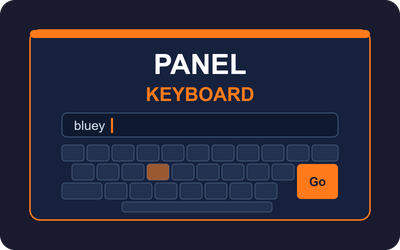
Gives any device a proper keyboard on your RTI touch panels. A Web Object raises the panel's own iPad, iPhone or Android keyboard, so autocorrect, dictation and paste all work and there is no keyboard page to design. Every keystroke is passed, in order, to another RTI driver in the project, or sent straight to an IP device over HTTP.
Key Features
- Native keyboard: the panel's own keyboard with autocorrect, dictation and paste.
- One-click mapping: Driver Utilities finds every keyboard-capable driver in the project and builds the whole key map.
- Works with your existing drivers: Android TV, Google TV, Nvidia Shield, TCL, Apple TV, Roku, Kodi, LG webOS and more.
- HTTP relay: types into IP devices with no RTI driver (Android keycodes, Roku ECP, raw text).
- Reliable delivery: keys sent in order with an adjustable gap; a silent device never stalls the keyboard.
- Configurable Go key: Enter, OK, both, or your own macro.
- Preset searches: Send Text functions for one-touch search buttons.
Requirements
- RTI ICP (ICP-2 / ICP-4 / ICP-10) or XP processor (XP-3 / XP-6 / XP-6s / XP-8s / XP-8v)
- Integration Designer 11.4 or later, or Integration Designer 12
- A panel that supports the Advanced Web Object
How It Works
Add the device's own driver, then Panel Keyboard. Run Find Keyboard Drivers and Map Keyboard to Driver from Driver Utilities, and point an Advanced Web Object at http://<processor-ip>:9074/. The sample project included is already mapped to the Android TV driver.
Panel Keyboard | Version 0.5
Introduction
Gives any device a proper keyboard on your touch panels. A Web Object raises the panel's own on-screen keyboard (iPad, Android panel), so autocorrect, dictation and paste all work. Every keystroke is relayed, in order, to another RTI driver in the project or straight to an IP device over HTTP.
Panel Keyboard is published by Smart Home Programming and Automation (smarthomeprogramming.com.au), an Australian RTI driver developer.
Version History
- 0.5 (2026-11-07) - First store release. Tested end to end on an ICP-2 (programmed in Integration Designer 12) and on Integration Designer 11. Removed the temporary ID12 diagnostic command.
- 0.4 (2026-11-07) - Map Keyboard and Clear Keyboard Mapping now work in Integration Designer 12 as well as 11.
- 0.3 (2026-11-07) - On Integration Designer 12, Map Keyboard and Clear Keyboard Mapping no longer close the project; they explain that ID12 support is coming. Added a diagnostic ID12 Probe command.
- 0.2 (2026-11-07) - Loads in Integration Designer 12: the manifest now declares the database entitlement IDesign 12 requires before a driver's design-time menu may create macros. Added Connection State (with Connected / Disconnected booleans and events), License Status variables, and these instructions in the RTI format.
- 0.1 (2026-10-08) - First release.
Driver Features
- Uses the panel's own keyboard - no on-screen QWERTY to draw, and autocorrect, dictation and paste work.
- Types into another RTI driver: one design-time menu command finds every driver in the project that has a keyboard and builds one system macro per key.
- Types into an IP device with no RTI driver, using an HTTP URL template (Android keycodes, Roku ECP, raw character or ASCII).
- Keystrokes are sent one at a time, in order, with an adjustable gap. A device that does not answer is skipped after 4 seconds so the keyboard never stalls.
- Configurable confirm key (Enter, OK, both, or nothing) because devices differ.
- Keyboard Text variable (tag KP_BUFFER) to echo what has been typed.
- Send Text functions for fixed preset searches.
Supported Devices
Any RTI driver in the project whose functions take keyboard input - for example Android TV, Google TV, Nvidia Shield, TCL, Apple TV, Roku, Kodi, LG webOS, MAG, Sonos, WiiM and Roon. Any IP device that accepts a keystroke as an HTTP request (for example Zappiti over its remoteCmd API, or Roku ECP).
System Requirements
- Integration Designer - 11.4 or above, or Integration Designer 12
- RTI processor - ICP (ICP-2 / ICP-4 / ICP-10) or XP class (XP-3 / XP-6 / XP-6s / XP-8 / XP-8s / XP-8v)
- Processor script runtime - 24 or above
- Panel - one that supports the RTI Advanced Web Object (IDesign 11.14 or later)
Device Setup
Step 1 - Add the Web Object
Add this driver, then place an Advanced Web Object on the page and set its URL to:
http://<processor-ip>:9074/
<processor-ip> is the IP of the processor this driver runs on (the ICP, or the XP if the driver is on an XP). The exact address is also published in the Keyboard Web URL variable. Tap the keyboard icon and the panel's keyboard appears. Go sends Enter, Clear erases what was typed, Done hides the keyboard.
Variations: add ?mode=icon for a small object that shows only the icon, or ?mode=invisible to lay a transparent object over your own keyboard button. ?hint=Search%20Netflix changes the caption.
Step 2a - Type into another RTI driver (recommended)
- Add and configure the device's own driver first (for example set the Android TV driver's IP address), so it is in the project before you map.
- Open this driver's Driver Utilities in IDesign and choose SHP: Find Keyboard Drivers. Every driver in the project that has a keyboard is listed in Target Driver, with how many keys were found.
- Choose the one to type into in Target Driver.
- Run SHP: Map Keyboard to Driver. One system macro is built per key and every key picker is filled in. A summary shows exactly what each key will call.
- Works the same in Integration Designer 11 and 12.
- Save and send the project. Run the mapping again any time - it re-uses its macros, and choosing a different Target Driver re-points them.
SHP: Clear Keyboard Mapping removes the macros this driver made. The pickers are in the advanced Key Map category if you want to change one by hand.
Sample file
SampleFile.apex has Panel Keyboard already mapped to the Android TV driver on an XP-6s, with a demo iPad page. Before sending it, set the Android TV driver's IP address to your device and the Web Object URL to your processor's IP. Integration Designer 12 converts it when you open it (choose your ICP in the conversion).
Step 2b - Type into an IP device (HTTP relay)
Turn on Enable HTTP Relay and set a URL Template. The tokens are replaced on every keystroke:
{KEY}- the key in the chosen Key Format (Android keycode, Roku, raw character or ASCII number){CHAR}- the character itself,{ASCII}- its decimal code,{TEXT}- everything typed so far
Examples:
- Zappiti / Android keycodes:
http://192.168.1.24:8080/remoteCmd?command={KEY}(Key Format: Android) - Roku ECP:
http://192.168.1.30:8060/keypress/{KEY}(Key Format: Roku, HTTP Method: POST) - Whole-text search:
http://device/search?q={TEXT}(Send: Only on Enter)
Credentials can go in the URL (http://user:pass@host/...) and are sent as Basic authentication. HTTPS URLs are supported.
Enter Key Sends
The confirm key differs between devices, so it is a setting:
- Auto (default) - an RTI target uses its own Enter / Submit, falling back to OK. The HTTP relay sends OK for Android keycodes and Enter for every other format.
- OK (Select) - the D-pad OK. Android TV search screens usually confirm with this and ignore Enter.
- Enter, then OK - both, in that order, with Gap Before OK between them.
- Nothing - only the Enter Pressed event fires, for your own macro.
Android-family RTI drivers (Android TV, Google TV, Nvidia Shield, TCL) collect keystrokes and only send the text to the TV on Submit, so Enter is what makes the text appear. If the search then needs confirming, use Enter, then OK.
Driver Configuration
Keyboard Web Object
- Enable Keyboard Web Object - default
true- Serve the keyboard page for an RTI Advanced Web Object. - Keyboard Web Port - default
9074- must not be used by another driver on the same processor. - Enter Key Sends - default
auto- see Enter Key Sends above. - Gap Between Keys (ms) - default
120- raise it if a device drops letters when you type quickly. - Gap Before OK (ms) - default
300- with Enter, then OK: the pause between the two. - Clear Text After Enter - default
false- reset Keyboard Text whenever Enter is pressed. - Device Label - optional tag for this instance in the log, useful with several keyboards.
Target Driver (RTI)
- Target Driver - filled by SHP: Find Keyboard Drivers.
- Mapped To - filled by SHP: Map Keyboard to Driver.
Key Map (filled by Map Keyboard)
One system-macro picker per key: A-Z, 0-9, Space, Backspace, Enter, OK (Select), Period, Comma, Minus, At, Slash, Underscore, Apostrophe. Normally left to Map Keyboard to Driver.
HTTP Relay (IP devices)
- Enable HTTP Relay - default
false. - URL Template - tokens
{KEY}{CHAR}{ASCII}{TEXT}. - Key Format - default
android- how{KEY}is written. - Send - default
each- per key, or one request on Enter carrying the whole{TEXT}. - HTTP Method - default
GET. - Enter URL (optional) / OK URL (optional) - override the template for those keys.
Licence
- Licence Key - paste the key supplied for this processor. Blank runs the 2-hour trial.
Licensing
A 2-hour trial runs on every load. After it ends, keystrokes are no longer sent to the target (Keyboard Text and the events still update). Licence keys are per processor - send the MAC For Key value to purchase one at smarthomeprogramming.com.au/store/ and paste the key into Licence Key. License Status reads Licensed, Trial or Unlicensed.
Functions
- Send Text / Send Text then Enter - type a fixed string, e.g. a preset search button.
- Enter, Backspace (tag KPBACK), Space (tag KPSPACE), Clear Text.
- Diagnostics: Remote Logging On / Off / Toggle, Print Key Map.
Variables
- Keyboard Text (tag KP_BUFFER) - what has been typed. Drop it on a text field to echo it.
- Last Key, Keyboard Web URL, Mapped To, Keys Mapped.
- Connection State (0 Disconnected / 1 Connected) with Connected and Disconnected booleans. This driver has no device of its own: Connected means keys have somewhere to go - keys are mapped to a target driver, or the HTTP relay is on and its last request was answered.
- Driver Version, Last Error.
- License Status, License Status - Licensed / Trial / Unlicensed, License Trial Remaining.
- Licence Valid, Licence Status, Trial Active, Trial Expired, Trial Time Remaining, MAC For Key (kept for existing projects).
Events
- Character Typed, Enter Pressed, Backspace, Text Cleared.
- Connected / Disconnected - fire on a change after start-up, never on a reboot.
- Trial Warning (5 minutes left), Trial Expired.
- Design-time id lookup (Internal category) - never fires. Integration Designer 12 uses it while mapping to read each macro's id. Do not program it.
Autoprogramming Support
Drop these tags on a button to wire it automatically (command = the press, feedback = the button state).
| Tag | Wires | |---|---| | KPBUFFER | feedback - Keyboard Text | | KPBACK | command - Backspace | | KP_SPACE | command - Space | | Connected | feedback | | Disconnected | feedback (visible slot) |
Limitations
- With the Android-family drivers, typed letters do not appear on the TV as you type: the whole word is sent when you press Go. This is how those drivers type reliably.
- Typing into an RTI target uses one system macro per key, so the target driver must already be in the project when you run Map Keyboard to Driver.
- Some apps ignore text sent by the device's driver (for example Stan and Disney+ on Android TV ignore ADB text input). Those need app-specific support in the target driver; contact us if an app you need does not accept typing.
- The HTTP relay cannot tell whether a device accepted a key - any answer counts as delivered.
- iPad Web Objects cache by slot: after an update, force-quit and reopen the RTI app if the old page still shows.
Support Contact
Smart Home Programming and Automation - smarthomeprogramming.com.au - david@smarthomeprogramming.com.au
Troubleshooting:
- The page does not load - check the port is not used by another driver, and that the panel can reach the processor's IP address.
- Letters arrive but Enter does nothing - change Enter Key Sends (try OK, or Enter, then OK).
- Nothing appears on the TV - press Go first (Android drivers send the word on Go), then check the target driver itself is connected to the right device IP.
- Letters are missing - raise Gap Between Keys.
- A driver is not listed by Find Keyboard Drivers - its keyboard is not in a form this driver recognises. Use its own keyboard functions with the Enter Pressed and Character Typed events, or contact us and we will add it.
A 120-minute free trial runs every time the driver loads. A licence is per processor: read the MAC For Key variable and buy a key at smarthomeprogramming.com.au/store/, then paste it into Licence Key in Driver Properties.