Driver Type
Categories
- Recent Updates
- Access Control
- Amplifier
- A/V Receiver
- Climate and Pool Control
- Disc Player / Changer
- Display
- DSP
- DVR
- Irrigation / Sprinklers
- Lighting Control
- Matrix Switch
- Media Server and Player
- Multi-Room A/V
- Networking
- Power and Rack Management
- Security
- Surveillance
- Teleconferencing
- Training
- Tuner
- Utility
- Video Projector
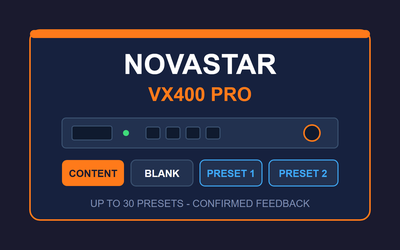
NovaStar VX400 Pro
By: David Bowdler
Updated: Oct. 12, 2026
NovaStar VX400 Pro LED-Wall Driver
Control of the NovaStar VX400 Pro (Unico platform) LED controller from an RTI processor over the local network. Recall up to 30 presets saved on the controller, plus dedicated Content On and Blank Screen buttons for showing the wall or blacking it out.
Key Features
- Presets: up to 30 numbered presets, each with its own button tag and active highlight
- Content On / Blank Screen: the everyday show and hide buttons
- Confirmed control: every command is checked against the controller's reply, so a preset only shows as active once it has been applied
- Events: Online, Offline, Preset Applied and Command Failed for macros
- One-drag wiring: each tag wires both the command and its highlight
- Diagnostics: a telnet console and optional remote logging for commissioning
Requirements
- NovaStar VX400 Pro on the same network as the processor, reachable on its Unico control port (19999)
- Presets saved on the controller
- RTI XP-3 / XP-6 / XP-6s / XP-8s / XP-8v, Integration Designer 11.4 or later
How It Works
Enter the controller IP and serial number, then paste each preset's ID from the Unico web interface. The driver sends the same preset command the Unico web interface uses, reads the controller's answer, and only marks the preset active when it has been accepted.
NovaStar VX400 Pro LED-Wall Driver
Version 1.2
Controls a NovaStar VX400 Pro (Unico platform) LED controller over the local network. Recalls up to 30 presets plus dedicated Content On and Blank Screen buttons, with confirmed results, online status and per-preset button feedback.
Requirements
- A NovaStar VX400 Pro on the same network as the processor, reachable on its Unico control port (19999).
- The presets you want to recall already saved on the controller.
- RTI XP-series processor on script engine 24 or later, Integration Designer 11.4 or later.
Setup
1. Connection: set Network Address to the controller IP. Leave Network Port at 19999 unless it has been changed.
2. Controller Serial (SN): enter the unit serial number. It is sent in every request and identifies the target controller. Read it off the unit label or the Unico web interface.
3. Device Label (optional): a name shown in log lines, so several controllers on one processor are easy to tell apart. Blank uses the controller IP. Use one driver instance per controller.
4. Licence Key: leave blank to run the 120-minute trial. See Licensing below.
Presets
Each preset needs its NovaStar preset ID (a UUID). Capture it from the Unico web interface: open the browser developer tools (Network tab), recall the preset in the web interface, and copy the presetId value from the /unico/v1/ucenter/preset/apply request body.
- Content / Blank: paste the ID of your normal content preset and of your black or blank preset. These drive the Content On and Blank Screen functions.
- Preset Count: how many numbered preset slots to show (1 to 30).
- Preset 1 to N: give each slot a name and its ID.
- Serial: each request carries a serial value. The defaults match a typical capture (Content 1, Blank 2, Preset N = N). If your controller ignores a repeated identical send, set the serial to 0 and the driver will increase it on every send.
Wiring buttons (tags)
Each control has a matching button tag, so one tag drop wires the command and its feedback:
- Content On and Blank Screen: tags "Content On" and "Blank Screen".
- Numbered presets: tags "Preset 1" to "Preset 30". The tag wires the recall and the active highlight.
- Recall Preset (by number) takes the slot number as a parameter, for macros.
Run Diagnostics > Print Tag Reference to list every preset and its tag in the log.
Feedback variables
- Online: true when the controller is reachable.
- Current Preset Name, UUID and Index: the last preset applied.
- Preset N Active, Content Active, Blank Active: booleans for button highlighting.
- Last Result: the outcome of the last command, as reported by the controller.
- Licence Valid, Licence Status, Trial Time Remaining, MAC For Key.
Events
- Online, Offline.
- Preset Applied: fires when the controller confirms a preset.
- Command Failed: fires when the controller rejects a command or cannot be reached.
- Trial Warning, Trial Expired.
Licensing
The driver runs a 120-minute trial on every load. After that, preset commands stop until a licence key is entered; online status keeps updating. Read the processor MAC from the MAC For Key variable (or the debug console mac command), buy a key at smarthomeprogramming.com.au and paste it into Licence Key. One key per processor.
Diagnostics
Telnet to the processor on the Debug Console Port (default 12584) for live status, the preset list and manual recall. Set the port to 0 to turn it off. Remote Logging (in Driver Properties, or the Remote Logging On / Off functions) sends driver output to the support service when enabled.
Upgrading from an earlier version
The default debug console port is now 12584. A driver that was already installed keeps the port it had; only a newly added driver uses the new default.
Support
Smart Home Programming - smarthomeprogramming.com.au
Email: david@smarthomeprogramming.com.au
120-minute free trial every time the driver loads. After the trial, preset commands stop but online status keeps updating. A licence is per RTI processor and is bound to its MAC address - read the MAC from the driver's MAC For Key variable. Buy at smarthomeprogramming.com.au/store.