Driver Type
Categories
- Recent Updates
- Access Control
- Amplifier
- A/V Receiver
- Climate and Pool Control
- Disc Player / Changer
- Display
- DSP
- DVR
- Irrigation / Sprinklers
- Lighting Control
- Matrix Switch
- Media Server and Player
- Multi-Room A/V
- Networking
- Power and Rack Management
- Security
- Surveillance
- Teleconferencing
- Training
- Tuner
- Utility
- Video Projector
Driver Type
Categories
- Recent Updates
- Access Control
- Amplifier
- A/V Receiver
- Climate and Pool Control
- Disc Player / Changer
- Display
- DSP
- DVR
- Irrigation / Sprinklers
- Lighting Control
- Matrix Switch
- Media Server and Player
- Multi-Room A/V
- Networking
- Power and Rack Management
- Security
- Surveillance
- Teleconferencing
- Training
- Tuner
- Utility
- Video Projector
Calendar Range Trigger
By: David Bowdler
Updated: June 22, 2026
Version: 0.5
Calendar Range Trigger
Turn one "Holiday" button into a whole year of seasonal automation. The Calendar Range Trigger fires an RTI macro — typically a lighting scene — whenever today's date falls inside a range you define. Set it once and the right scene runs itself for every holiday, all year, with no schedules to maintain.
Built-In Browser Editor
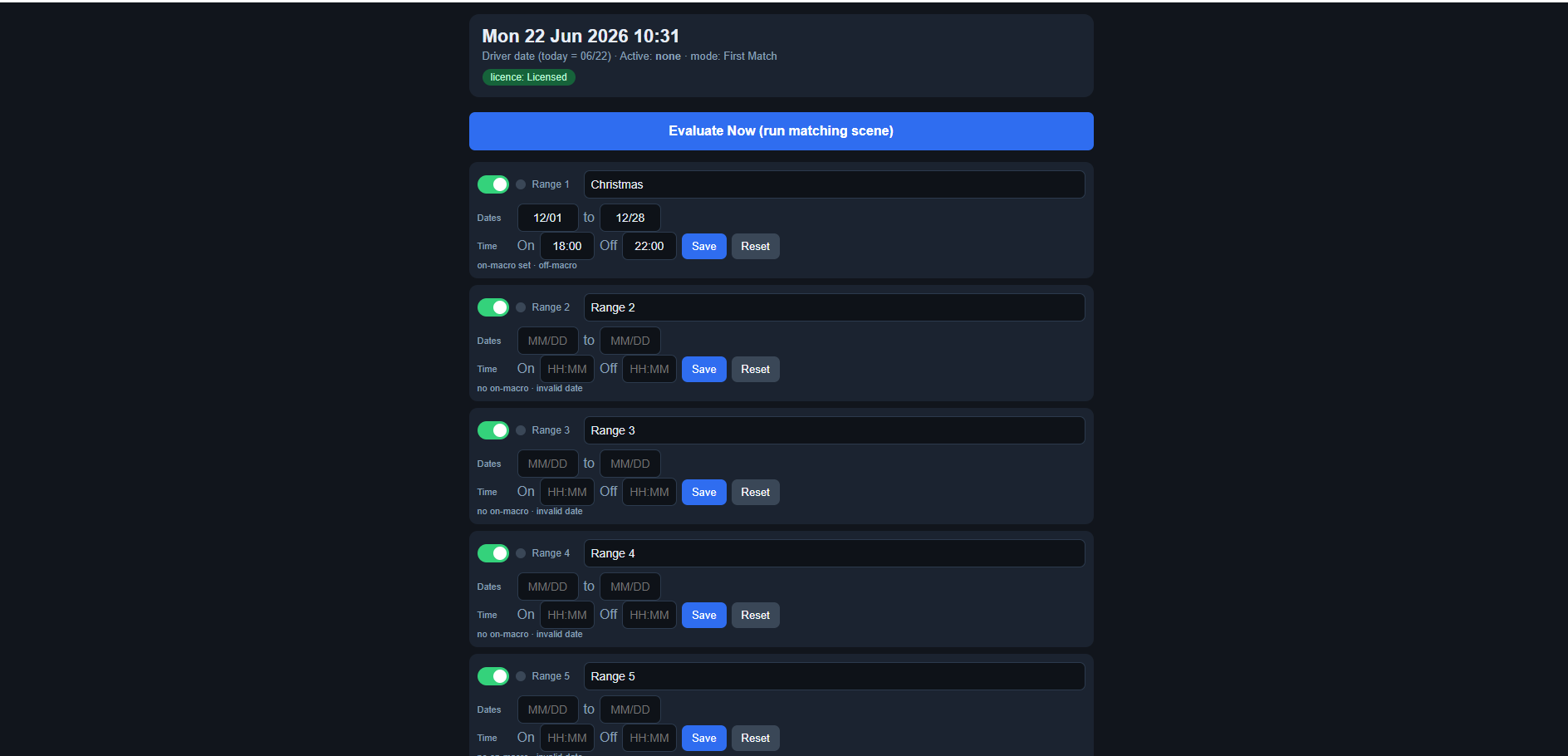
End users adjust every date range from a phone or tablet — no Integration Designer needed. Live current-date and licence status up top, one-tap Evaluate Now, and per-range Name, dates, optional On/Off times and enable toggle.
Key Features
- 12 date-range slots: Name each range and give it a Start and End date (MM/DD) plus the macro to run.
- Year-end wrap: Ranges that cross New Year (e.g. Dec 15 - Jan 1) just work — no awkward two-part setup.
- Automatic daily evaluation: The driver checks the date every day and on boot, firing the matching season's scene with zero programming.
- First-match or all-match: Run only the first matching range, or every overlapping range at once.
- Per-range On / Off times: Optionally turn a scene on and off at set times each day while in season.
- Browser date editor (Web Object): The end user edits range names and dates from a phone or tablet — no Integration Designer required.
- Rich feedback: Per-range Active variables and Activated / Deactivated / Triggered events drive panel UI and further automation.
- Live current-date display and a telnet debug console for easy commissioning.
Requirements
- RTI XP processor (XP-8 or compatible)
- Integration Designer 11.4 or later, runtime 24+
- RTI macros (e.g. lighting scenes) to trigger
How It Works
Add the driver, then fill in each date range with a name, a start and end date, and the macro to run. Wire your "Holiday" button to Evaluate Now, or let the driver evaluate automatically each day. When today falls inside a range, the matching macro fires and that range's Active variable goes true — so your touch panels and automations always reflect the current season. End users can fine-tune the dates any time from the built-in browser editor.
Calendar Range Trigger
Version 0.5
Runs an RTI macro (e.g. a lighting scene) when today's date falls inside a date range you define. Built for holiday lighting - one "Holiday" button picks the right seasonal scene automatically.
What it does
- Up to 12 named date ranges, each with a Start date, End date and a macro to run.
- Ranges may wrap the year end, e.g. Start 12/15 to End 01/01 (Christmas through New Year).
- On the Holiday button press it finds the matching range(s) and runs the scene.
- Also exposes per-range Active sysvars and Activated/Deactivated events so seasons can change automatically with no schedule.
Setup
1. Add the driver to your project.
2. In Driver Properties, fill in each Range you need (top to bottom = priority):
- Name: e.g. Christmas, Hanukkah, July 4th.
- Start date (MM/DD): e.g. 12/15.
- End date (MM/DD): e.g. 01/01. The end day is included.
- Macro to run: pick the lighting scene macro for that range.
Leave Start/End blank for any range you are not using - it is skipped.
3. General settings:
- When the Holiday button is pressed: Run first matching range only (default) or Run all matching ranges.
- Re-apply matching scene on processor boot: re-runs the matching scene after a power outage.
- Auto-run matching scene at date rollover: runs the scene automatically when the calendar enters a new range (checked every 30 minutes).
- Macro when NO range matches: optional everyday/normal scene.
Wiring the Holiday button
Two ways:
- Drag the "Holiday" tag onto a button, OR
- Wire the button's press to a macro that calls the Evaluate Now function.
That is all - the driver runs the correct scene based on the date.
Automatic (no button) option
Each range fires Range N Activated when the calendar enters it and Range N Deactivated when it leaves. Wire those events to macros for fully automatic seasonal scenes. The Range N Active booleans (and their inverted partners) can drive page/layer visibility.
Functions
- Evaluate Now (tag: Holiday) - evaluate the date and run the matching scene.
- Evaluate One Range - test/force a single range.
- Print Current Date / Print All Ranges - diagnostics to TraceView.
- Set Test Date (MMDD) - pretend a date so you can test, e.g. 1225 for Dec 25; 0 returns to the real clock.
Events
- Evaluated, No Range Active.
- Per range: Triggered, Activated, Deactivated.
Notes
- The driver reads the processor's local date. Make sure the processor clock and time zone are set correctly.
- Dates are entered as MM/DD (US-style month then day). 12/04 = December 4th.
Daily On / Off times (optional)
Each range can have an On Time and an Off Time (24h, e.g. 17:30). When set, the range's On macro runs at the On Time EVERY day while inside the date range, and the Off macro runs at the Off Time - perfect for "Christmas lights on at dusk, off at 23:30, all season". Leave the times blank for date-only behaviour (fires on the Holiday button / when the calendar enters the range). The On/Off macros fire once per day; if the processor reboots after the On Time it catches up and applies the scene.
Enable / disable a range
Each range has an Enabled switch (in IDesign and on the Web Object). Turn a range off to stop it activating without clearing its dates - e.g. disable Halloween for a year. A disabled range never becomes active and never fires.
Web Object (end-user date editor)
The driver hosts a browser page so the end user can adjust the ranges without IDesign. Add a Web Object pointing at http://[processor-IP]:[Web Object Port] (default 9064). From it the user can edit each range's Name / Start / End, Save or Reset (Reset reverts to your IDesign defaults), see the date the driver thinks it is, run Evaluate Now, and enter a licence key. Edits are stored on the processor and survive reboots; they override the IDesign values until Reset. Enable/disable and set the port under the Web Object config category.
Current date feedback
The driver publishes the date it believes it is: CurrentDate (MM/DD), CurrentDateFull (e.g. Sun 22 Jun 2026 14:30) and Today MMDD. Bind these to a label to confirm the processor clock. If CurrentDate shows "unknown", set the processor's clock / time zone.
Licensing
The driver is free to try for 120 minutes, then a licence key is required to keep running the scene macros (the date feedback and Active variables keep working). Enter the key in the Licence config category OR from the Web Object. The key is tied to this processor - find its MAC in the MAC For Key variable or on the Web Object. Variables: Licence Valid, Licence Status, Trial Active, Trial Expired, Trial Time Remaining. Events: Trial Warning (5 min left), Trial Expired.
Support
Smart Home Programming and Automation - https://smarthomeprogramming.com.au
This driver runs in a fully functional 120-minute trial mode. After the trial, a licence key is required to keep macros firing (date feedback and variables remain live).
Licences are issued per RTI processor (keyed to the processor's MAC address) and are a one-time purchase. Enter your key in the driver's Licence Key configuration field, or via the built-in Web Object licence entry.
Purchase a key and find your processor MAC instructions at the Smart Home Programming store.